Mindset v3 / Deploy in your app / Integrate Agent Chat SDK 2
View as MarkdownAgent flexible UI
Enabling the flexible UI mode for an embedded agent
With Flexible UI mode, agents are no longer limited to a fixed chat window. Your agent can collapse into a button, minimized to its original state, and expand into full screen.
Please see the Embed agent with flexible UI demo
Here's a guide that describes how to enable the flexible UI mode for an embedded agent, along with the various possible parameters.
Embedded agent default UI
By default, an embedded agent is displayed in an HTML container of your choice.
Please see the Embed agent demo
Enable the flexible UI mode

How to enable the flexible UI mode ?
To enable flexible UI, the <mindset-agent> tag needs to be wrapped in <mindset-container>
<mindset-container>
    <mindset-agent
        agentUid="AGENT-UID"
        style="display: block;">
    </mindset-agent>
</mindset-container>
Configurable attributes for the <mindset-container> tag
1. agent-title
agent-title is the itle that will be visible as the button title, or header title.
if a string is not passed, default will be Mindset Chat.
<mindset-container agent-title="My agent title">
    <mindset-agent
        agentUid="AGENT-UID"
        style="background-color: rgb(255, 255, 255); display: block;">
    </mindset-agent>
</mindset-container> 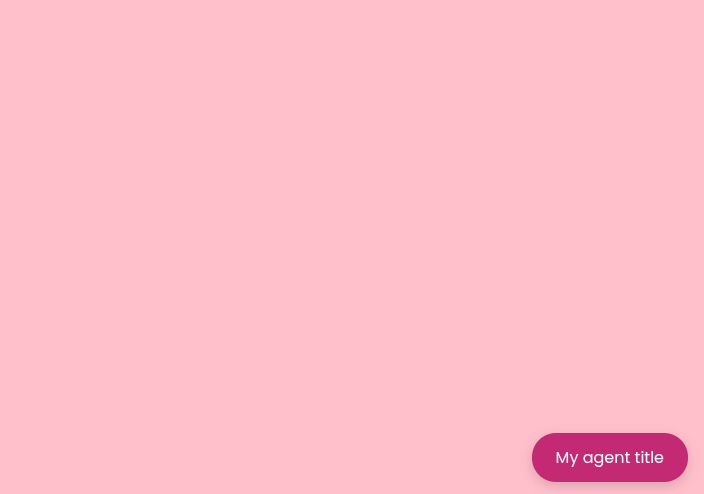
2. agent-icon
agent-icon is the icon visible on the button or header with title. If the icon’s URL is not passed, the agent will not display any icon
<mindset-container agent-icon="https://mindset-int.web.app/mindset-icon.png" agent-title="My agent title">
    <mindset-agent
        agentUid="AGENT-UID"
        style="display: block;">
    </mindset-agent>
</mindset-container> 

3. agent-view-mode
This dictates the availability of agent view modes. agent-view-mode can be one of the following values:
chat-only
This mode will display the agent in a chat-only view, without any full-screen mode.
<mindset-container agent-view-mode="chat-only" agent-title="My agent title">
    <mindset-agent
        agentUid="AGENT-UID"
        style="display: block;">
    </mindset-agent>
</mindset-container> 
tray-only
This mode displays the agent in full-screen view, without any chat mode.
<mindset-container agent-view-mode="tray-only" agent-title="My agent title">
    <mindset-agent
        agentUid="AGENT-UID"
        style="display: block;">
    </mindset-agent>
</mindset-container> 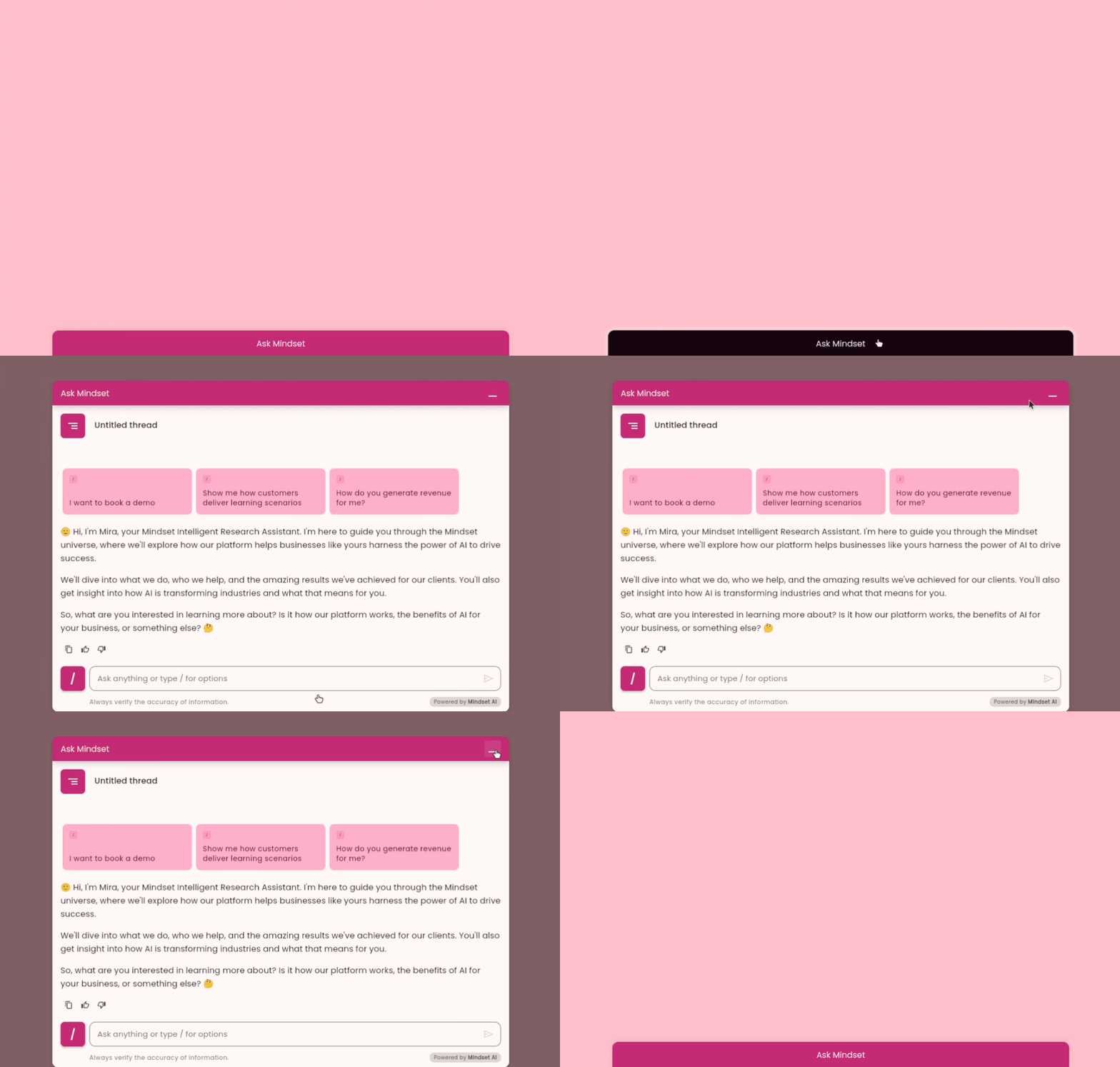
no-tray
This mode disables the tray's full-screen view, hence when minimizing the agent in full-screen mode , it returns to the 'button' state.
<mindset-container agent-view-mode="no-tray" agent-title="My agent title">
    <mindset-agent
        agentUid="AGENT-UID"
        style="display: block;">
    </mindset-agent>
</mindset-container> 
all
That is the default mode, which will display the agent in both chat and tray modes, allowing users to switch between them.
<mindset-container agent-view-mode="all" agent-title="My agent title">
    <mindset-agent
        agentUid="AGENT-UID"
        style="display: block;">
    </mindset-agent>
</mindset-container> 4. agent-header-color-override
This parameter can accept text color or hex code. can be used to force override the background color of button, tray and header. This parameter takes priority over theme color.
<mindset-container agent-header-color-override="blue" agent-title="My agent title">
    <mindset-agent
        agentUid="AGENT-UID"
        style="display: block;">
    </mindset-agent>
</mindset-container> 
5. agent-text-color-override
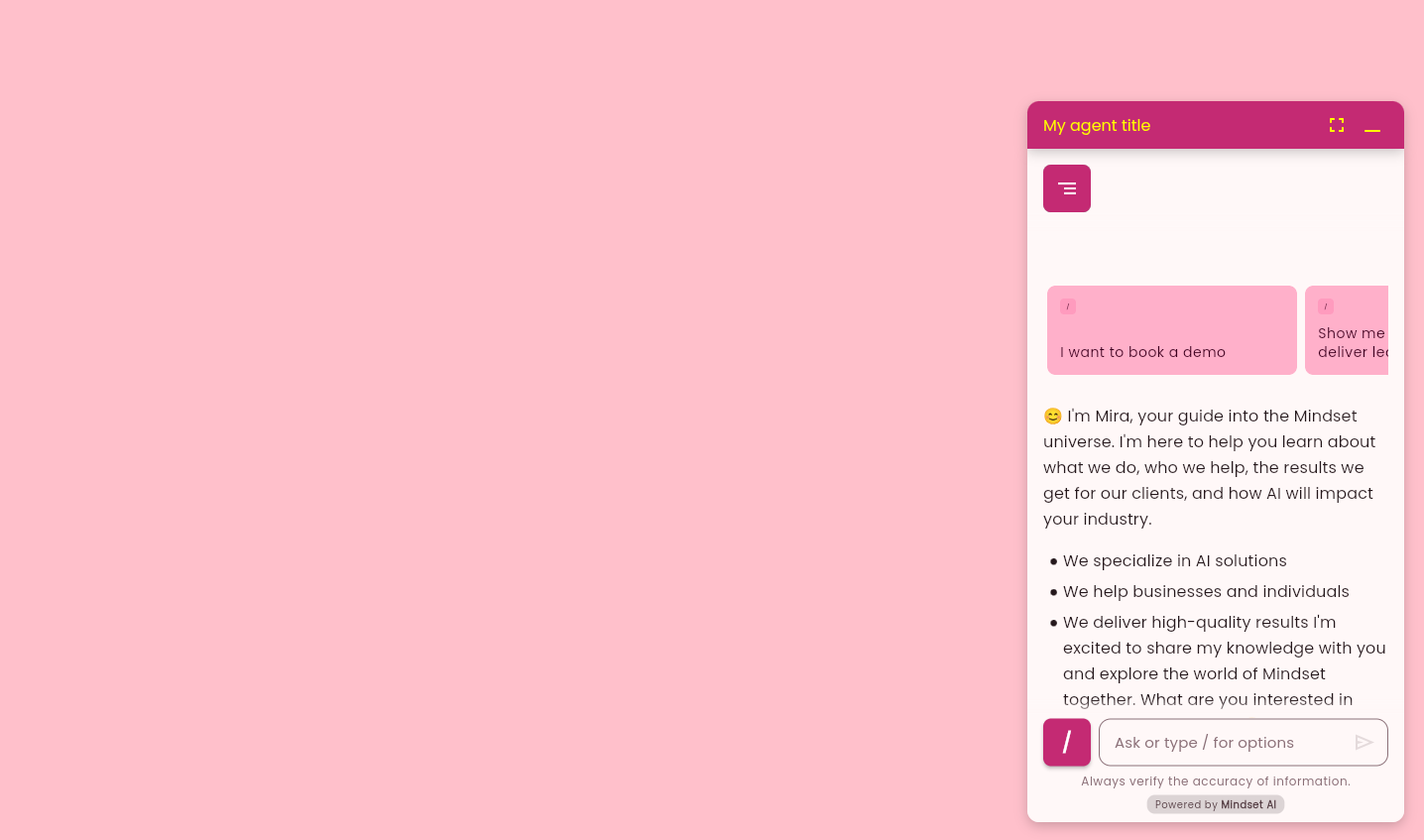
This parameter can accept text color or hex code. can be used to force override the text color of button, tray and header. This parameter takes priority over theme color.
<mindset-container agent-text-color-override="yellow" agent-title="My agent title">
    <mindset-agent
        agentUid="AGENT-UID"
        style="display: block;">
    </mindset-agent>
</mindset-container>