Mindset v3 / Deploy in your app / Integrate Agent Chat SDK 2
View as MarkdownFront end
Embedding an agent, Front-end script
Front-end script
There are 3 steps to follow in your Front-end code in order to embed a Mindset agent:
1. Add the mindset-sdk2.js script
<script src="MINDSET-SDK-URL/mindset-sdk2.js"></script>2. Add the <mindset-agent> HTML tag
<mindset-agent
    agentUid='YOUR-AGENT-UID'
    style='width: 100%; height: 600px; display: block; background-color: rgb(255, 255, 255); overflow: hidden; border-radius: 12px;'>
</mindset-agent>3. Call the mindset.init() method with your configuration
<script>
   mindset.init({
    appUid: "YOUR-APP-UID",
    enableVoice: 'true'
    })
</script>Parameters required for your configuration
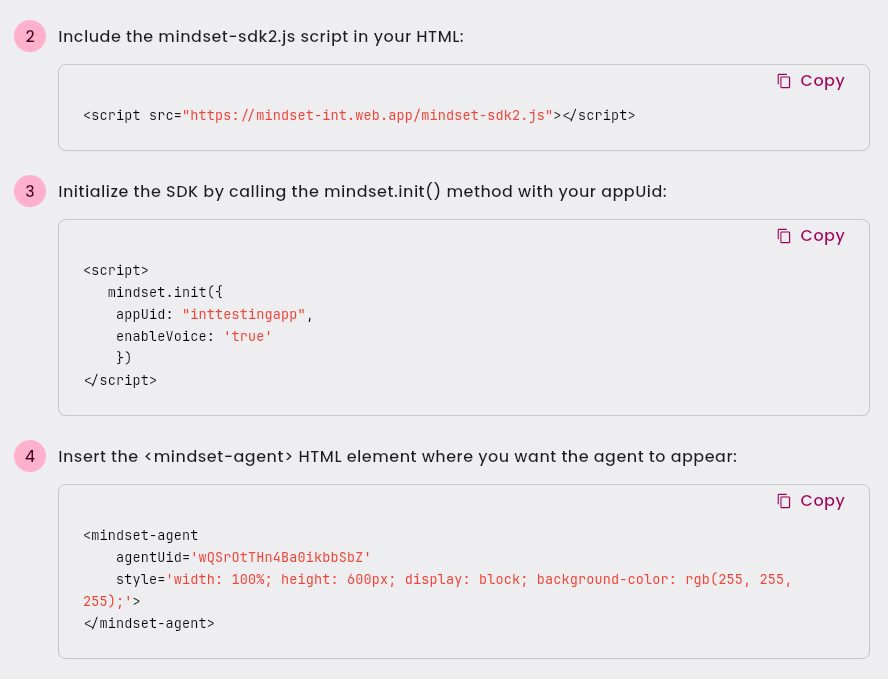
In order to get your configuration parameters, you either contact the Mindset AI team or you can directly go on your Agents Management Studio dashboard listing your live agents. For each of those agents you will be able to display the full deployment instructions with your specific configuration parameters already displayed:
- Sample live agent deployment instructions:
- You can also ask directly Mindset for the required parameters:
| Parameter | Description |
|---|---|
| MINDSET-SDK-URL | This will be provided by the Mindset AI team. |
| YOUR-APP-UID | Your appUid is provided by mindset. |
| YOUR-AGENT-UID | The agent Uid you want the user chat with. You can find that Agent Uid in the setting of the agent in the Agent Management Portal. |
The fetchAuthentication method
In case your agent uses the authenticated access, you have to set the fetchAuthentication param in the Mindset.init() method and provide a method which will be in charge of fetching the authToken from your Back-end authentication script
Let's say your front-end method is named getAuthToken, you then have to set the fetchAuthentication param as follows:
<script>
   mindset.init({
    fetchAuthentication: getAuthToken,
    appUid: "YOUR-APP-UID",
    enableVoice: 'true'
    })
</script>
Below an example of a such method (which basically just fetch the response from your back-end script) to include in your front-end code:
Sample fetchAuthentication method
<script>

    async function getAuthToken() {
        const userAuthTokenServerUrl = `YOUR-BACKEND-API-RETURNING-AUTHTOKEN`
        // e.g. https://mycompany-backend/api/getusertoken

        try {
            const headers = {
                "accept": "application/json",
                "Content-Type": "application/json"
            };
            const response = await fetch(userAuthTokenServerUrl, {
                method: 'POST',
                headers: headers
            });
            if (!response.ok) {
                throw new Error(`HTTP error! status: ${response.status}`);
            }
            const responseData = await response.json();
            return responseData.authToken;
        } catch (error) {
            console.log('Error fetching auth token:', error);
            throw error;
        }
    }

</script>
Front-end page full example
With anonymous access
Sample HTML page embedding an agent:
<html>
    <head>
        <meta name="viewport" content="width=device-width, initial-scale=1">
        <script src="MINDSET-SERVER-URL/mindset-sdk2.js"></script>

        <script>
            mindset.init({
                appUid: "YOUR-APP-UID",
                enableVoice: 'true'
                })
        </script>
    </head>

    <body>
        <div class="main-container">
            <h1>Mindset Embedded Agent</h1>

            <mindset-agent
                agentUid='YOUR-AGENT-UID'
                style='width: 100%; height: 600px; display: block; background-color: rgb(255, 255, 255); overflow: hidden; border-radius: 12px;'>
            </mindset-agent>
        </div>
    </body>
</html>
With authenticated access
Sample HTML page embedding an agent including the fetchAuthentication method
<html>
    <head>
        <meta name="viewport" content="width=device-width, initial-scale=1">
        <script src="MINDSET-SERVER-URL/mindset-sdk2.js"></script>

        <script>
            async function getAuthToken() {
                const userAuthTokenServerUrl = `YOUR-BACKEND-API-RETURNING-AUTHTOKEN`
                // e.g. https://mycompany-backend/api/getusertoken/${currentUserId}

                try {
                    const headers = {
                        "accept": "application/json",
                        "Content-Type": "application/json"
                    };
                    const response = await fetch(userAuthTokenServerUrl, {
                        method: 'POST',
                        headers: headers
                    });
                    if (!response.ok) {
                        throw new Error(`HTTP error! status: ${response.status}`);
                    }
                    const responseData = await response.json();
                    return responseData.authToken;
                } catch (error) {
                    console.log('Error fetching auth token:', error);
                    throw error;
                }
            }

            mindset.init({
                fetchAuthentication: getAuthToken,
                appUid: "YOUR-APP-UID",
                enableVoice: 'true'
                })
        </script>
    </head>

    <body>
        <div class="main-container">
            <h1>Mindset Embedded Agent</h1>

            <mindset-agent
                agentUid='YOUR-AGENT-UID'
                style='width: 100%; height: 600px; display: block; background-color: rgb(255, 255, 255); overflow: hidden; border-radius: 12px;'>
            </mindset-agent>
        </div>
    </body>
</html>
Customizing the agent UI colors
There is a default Theme color palette for the agent UI, but you can customize it by passing a theme parameter to the mindset.init() method.
Please read the Agent UI color theme documentation for more details about the available options.
Customizing the agent Font
There is a default Font for the agent UI, but you can customize it by passing a customFontTheme parameter to the mindset.init() method.
Please read the Agent Fonts customization documentation for more details about the available options.
Flexible agent UI
The <mindset-agent> tag can be wrapped in any <Div> element of your page.
But if you prefer to have a more flexible UI for your agent and you need to let the agent Ui always visible anywhere but without being intrusive, there is the option to enable the Flexible agent UI mode.
Please read the Flexible Agent UI documentation for more details.