Docs / AMS / Build / Build a function
View as MarkdownBuild a function
Build a function for the part of an agent's work that must come out the same every time, test it, publish it, and give it to an agent.
After this page you can build a function for the part of the work that must come out the same every time, run it on real input, publish it and give it to an agent.
What this is
A function is a fixed list of steps that runs top to bottom. Your agent calls it like a tool and gets one answer back.
Each step does one of these:
| Step | Example from the invoice agent |
|---|---|
| Calls a connection operation | Fetch the purchase order for this invoice number |
| Asks a model | Read a free-text delivery note and pull out the quantity received |
| Works out a value | Compare the invoice lines to the purchase order lines and list the differences |
| Chooses between values | Return "no action" when the list of differences is empty |
A model step goes through an AI model (LLM) connection. The connection fixes which model runs, so the function can't pick a different one.
Function or agent
Ask what happens if you run it twice with the same input.
If there is exactly one right answer, it's a function. Comparing an invoice to a purchase order has one right answer. So does converting a currency or looking up a supplier's payment terms. Leaving that to an agent means paying a model to work out something that has a correct answer, and getting a slightly different result each time.
If it needs weighing up, it belongs to the agent. Whether a $340 overage is worth querying with the supplier depends on the contract, the supplier and the size of the account. There's no single right answer.
Most real work is both. The invoice agent judges, and the invoice comparison function does the arithmetic it judges on.
Function or a single operation
An operation is one call to one system. A function is several calls plus the work in between. Fetching the invoice, fetching the purchase order and comparing them is three steps for an agent to get right. As a function, it's one call and one answer.
How you build one
You describe the function to the Function Builder, the agent docked on the left of the Functions workspace, and it writes the steps. You can't edit the steps by hand. To change something, tell the builder.
The Preview tab shows what it wrote, two ways:
- Document is the whole function in plain English, step by step, in the order it runs, with the raw definition at the foot. Read this to know exactly what it does.
- Diagram is a map of the same steps, with a place to run it on test input.
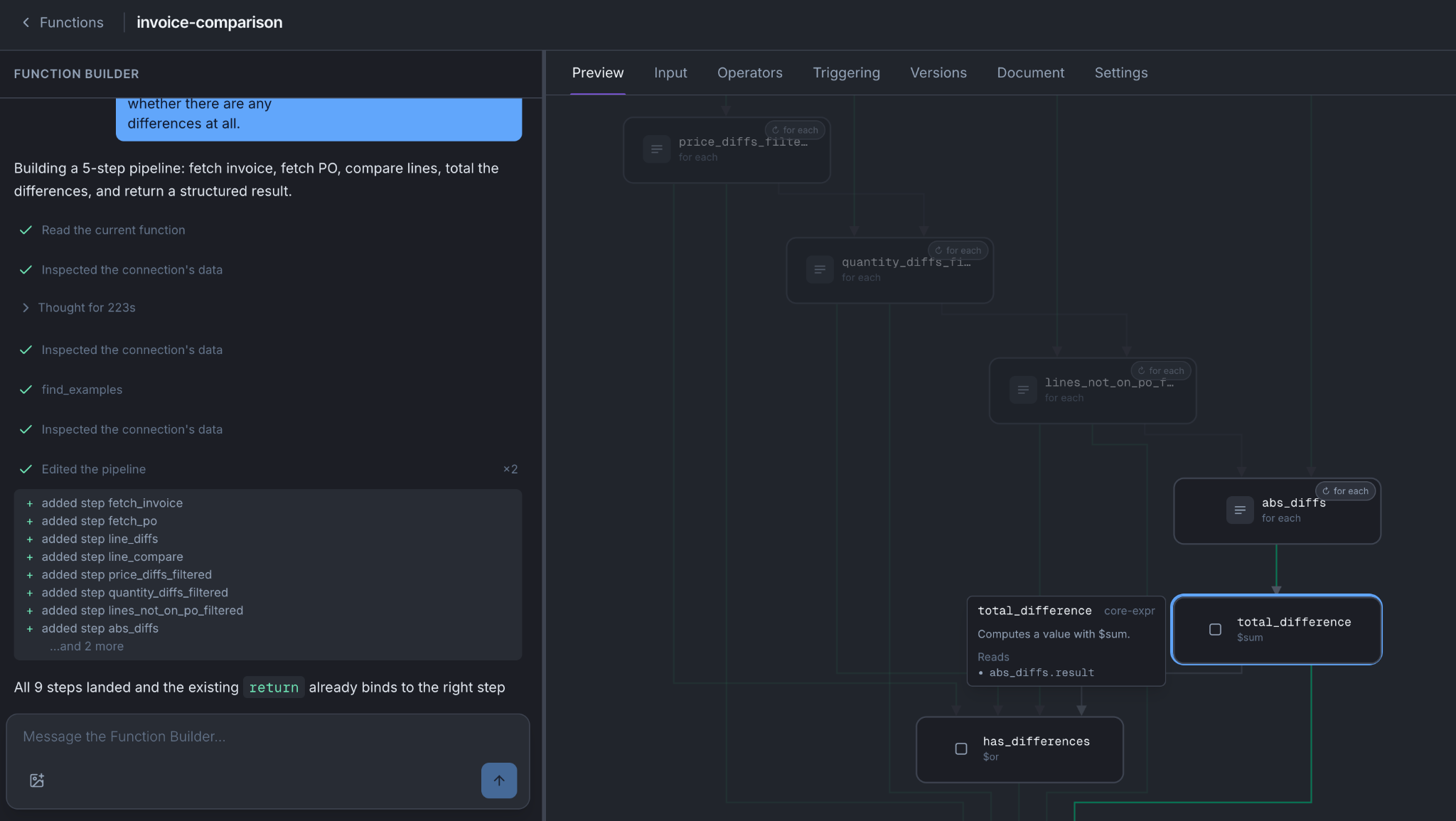
The invoice comparison function:
| Step | What it does |
|---|---|
| 1 | Calls an operation: fetch the purchase order for this invoice number |
| 2 | Works out a value: pull the line items out of the response into a plain list |
| 3 | Works out a value: put the invoice lines into the same shape |
| 4 | Works out a value: list every line where quantity or price differs |
| 5 | Works out a value: return the differences, their total value, and whether there are any |
Step five returns whether there are any differences at all. That is the value the agent's script uses to decide whether to skip the contract check. Have the function return the thing the script has to decide on.
Testing it
On the Diagram view, put an input in Fixture input (or press Sample) and press Run. Each step lights up as it runs, a failed step shows its error, and the result appears below.
How to do it
- Functions → New function. Describe what you want to the Function Builder.
- Read the Document it produced.
- Run it on the Diagram view with a real invoice number, including one awkward case.
- Press Save changes when it's right. That adds a new numbered version. It isn't live yet.
- Publish it on the Versions tab. Publishing checks the function first and refuses one that won't run.
- Give it to the agent. On the agent's Resources tab, add the function, press Save as version, then activate that version on Versions & Availability.
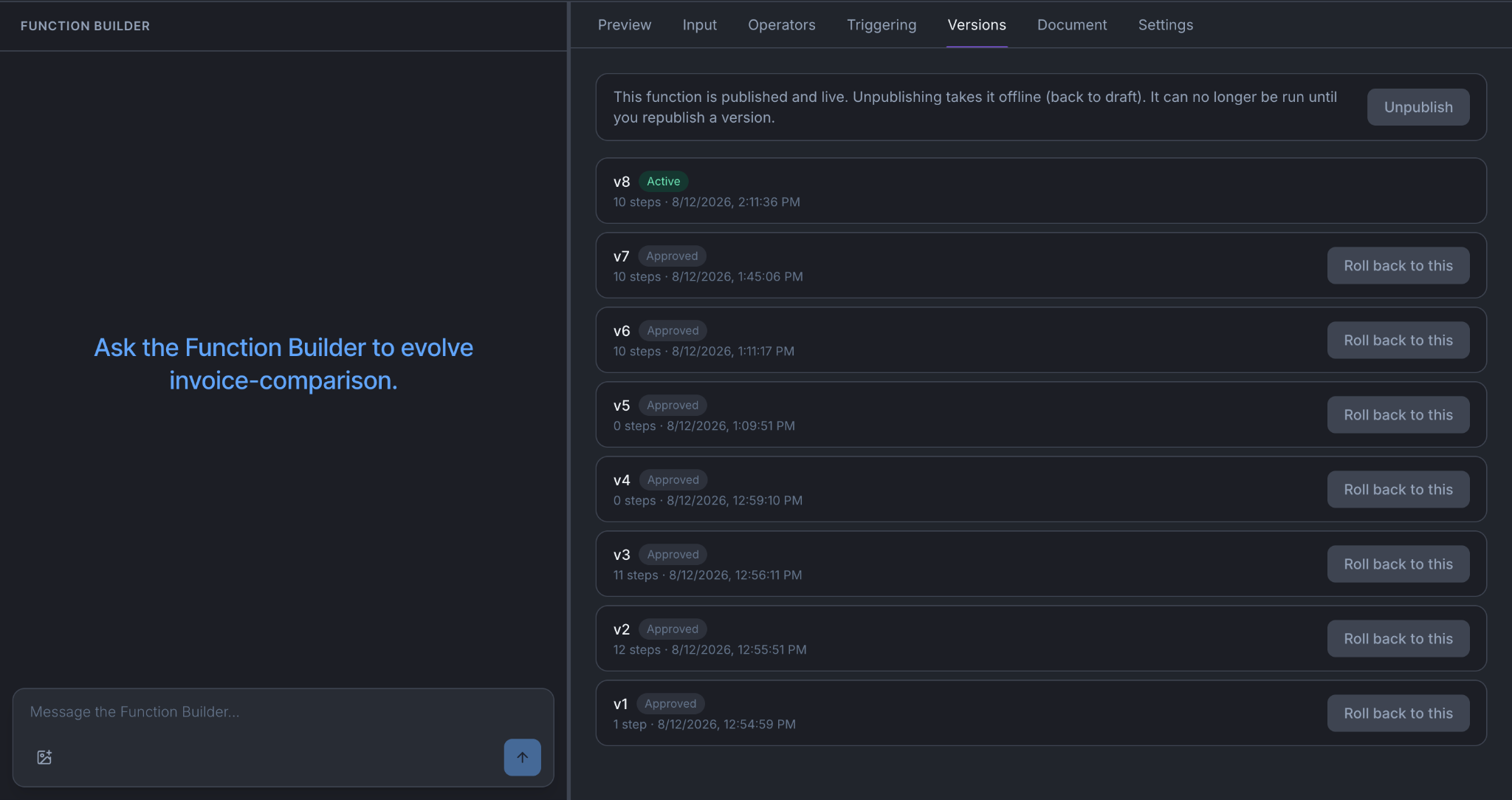
Until step five, it runs only on the Preview tab. Until step six is activated, no agent can call it. See What saving actually does.
Every operation the function calls must be marked Available to functions on its connection.
The tabs
| Tab | What it's for |
|---|---|
| Preview | Read the function (Document) and run it (Diagram) |
| Input | What the function takes in, and saved test inputs |
| Operators | Reference list of everything a step can do |
| Versions | Publish, roll back to an earlier version, or unpublish |
| Settings | Name, status and handle |
Things to know
A failed step stops the run, unless the step is marked optional. Then its error is recorded and the next steps carry on, and a later step can check that error. Stopping is the default so a failed fetch doesn't quietly leave you comparing against an empty list.
Retries are off unless you ask for them. A step can retry up to 10 attempts in total. You choose which failures are worth retrying. The default set is rate limits, server errors, timeouts and network failures. Other rejections aren't retried, because they'd be rejected the same way again.
A step can repeat across a list. A step that calls an operation or a model can run once per item: give it 200 invoice numbers and it runs 200 calls, eight at a time. The limit is 1,000 items, and a longer list is refused before any call goes out. A failed item is recorded as failed and the rest carry on.
There are two clocks. Each attempt has a timeout you can set. Each run has a deadline: 60 seconds when the Function Builder test-runs it, 300 seconds when an agent or a script calls it.
A run makes at most 1,000 outside calls. Each item in a repeat counts once. Retries don't count.
Every step runs. A step can't be skipped on a condition. To branch, use a step that chooses between values.
A function can't call another function.
Agents always use the active version. When you publish a new version or roll back, every agent that holds the function uses that version on its next call. You don't activate anything on the agent.
What can go wrong
A step returns nothing and everything after it is empty. Look at that step. Usually the operation returns something other than what you assumed. Run the operation on its own from the connection.
It works on the Preview tab but the agent never calls it. Check that it's published, that it's on the agent's Resources tab, and that the agent version holding it is active.
A step that calls an operation fails. Check that the operation is enabled and marked Available to functions on its connection.
It runs out of time on a big list. Repeat the step across the list instead of asking the agent to call the function many times, or make each run handle fewer items.
You're done when
- It runs cleanly on the Preview tab with real input, including one awkward case.
- It is published, and an active agent version holds it.
- You can say what it returns that the script uses to decide something.