Docs / AMS / Share and change / Publish and share an agent
View as MarkdownPublish and share an agent
Make an agent available to colleagues in the Hub, and know exactly what that hands them before you switch it on.
After this page, your colleagues can use an agent you built, and you can say in one sentence what that lets them do to which systems.
What this is
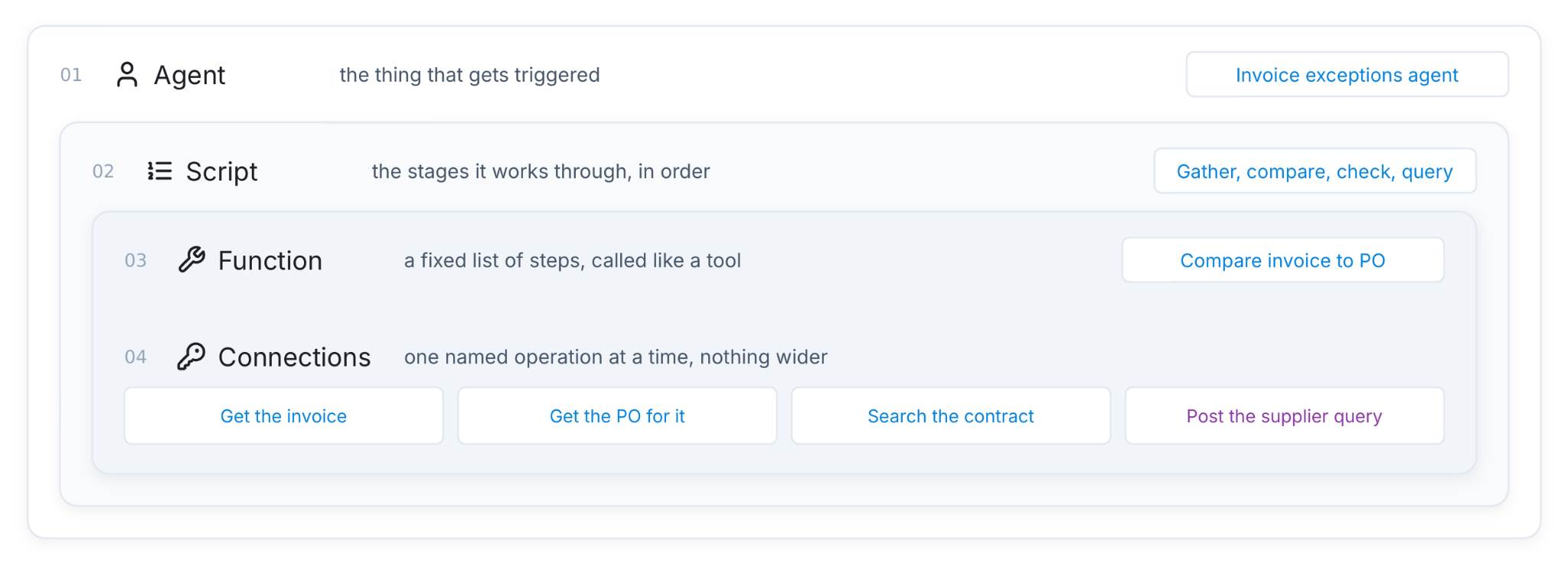
An agent carries everything it works with: its prompt, its script, its model, and the resources it may reach (operations on connections, functions, widgets and other agents). Giving people the agent gives them all of that, used through the agent and nothing else.
The invoice exceptions agent carries:
| What it carries | What it lets a colleague do |
|---|---|
| Four operations on the finance connection | Read an invoice, read its purchase order, read a supplier record, register a supplier query |
| The invoice-comparison function | Compare an invoice to its PO, line by line |
| The supplier contracts knowledge base | Search your supplier contracts |
| The script and prompt | Work through those steps in the order the script sets |
A colleague can't open the finance system, and can't pick an operation the agent wasn't given. They get those four operations, through this agent.
Making it available is an access decision
The question to ask before you switch an agent on: should everyone in the org be able to do these specific things to these specific systems?
It's everyone because the Hub has no per-person list. When you tick The Hub for an agent, every member of your org can find it in the Hub, in that environment. You can't share an agent with one person or one team. If only some people should be able to register supplier queries, keep that write out of an agent everyone can reach, or don't make the agent available in the Hub.
Where an agent can be used
Every agent has an Availability card on its Versions & Availability tab. It has one main switch, Available, and a link, Where this agent can be used, that opens six checkboxes:
| Checkbox | What ticking it lets in |
|---|---|
| The Hub | People in your organization can find this agent in the Hub and talk to it |
| Embedded in your own product | The agent can run inside a product you've embedded it in |
| Other agents | Another agent can hand this one a task |
| Schedules | A schedule you set can start this agent on its own |
| Triggers | Something outside Mindset can start it by calling a trigger's URL, with a secret you share |
| Outside systems | A system outside Mindset can start it through the API |
A new agent starts with every box unticked, so nothing can reach it. If you turn Available on while no box is ticked, all six are ticked for you. Untick the ones you don't want. Turning Available off stops the agent on every surface at once, and keeps the boxes as they were. Availability isn't versioned. It applies as soon as you save.
Embedding an agent in your own product
To put an agent in your own web app, tick Embedded in your own product. Without it, your backend's request to create a session for that agent is refused with a 403 and the code agent_not_available_here. The message names the box to tick. The agent also needs an active version. See Create a session for your users.
People can also reach Hub agents from their own Claude or Claude Code. That's the same agent with the same resources. See Use your agents from Claude.
How to do it
- Open the agent and check what it carries. Read the Resources tab. Say it out loud as "this lets everyone in the org do X to Y". If that sentence is uncomfortable, split the agent before you go further.
- Check that a version is active. On Versions & Availability, one version must be active. If you changed anything and saw Unsaved changes, choose Save as version, then Make it active. A resource you added but didn't save and activate isn't part of what people get.
- Turn Available on and choose where. Open Where this agent can be used and tick The Hub. Untick the surfaces you don't want.
- Save.
- Tell people. For the Hub, nothing more is needed. For Claude, point them at Use your agents from Claude.
- Read the first few conversations in Govern → Log, narrowed to that agent. What colleagues ask an agent is never quite what you designed it for.
What you should see
- The agent appears in the Hub for members of your org, in the environment you made it in.
- Each conversation shows up in Govern → Log with the person's name on it.
- If an agent tries a write operation that hasn't been approved, it can't use it. See Making it run, and approving what it does.
Things to know
- A conversation already running moves to the new version on its next turn. When you activate a new version, people mid-conversation pick it up with their next message. A script run already under way finishes on the script version it started with.
- To cut access this minute, go to the connection. Withdrawing approval for an operation, or disabling it, on the connection's Operations tab takes effect on the next call, in every conversation, for every agent that holds it.
- The external system sees the connection's credential. Everyone who uses the agent reaches the finance system with the same login, the one held on the connection. Mindset's own record names the agent and the person. The finance system's log doesn't. A StackOne connection is the exception: it acts as the end user.
- Writes may run without a person. The org setting Turn on connections that change other systems automatically is on by default, so a new write operation is enabled without anyone approving it. If you want a person to approve each new write operation once, an admin turns that off in Settings → Systems.
When it does not work
- People can't see it in the Hub. Check, in order: Available is on, The Hub is ticked, a version is active, and they are looking in the same environment.
- They can see it and it can't do anything. The resource change isn't in the active version yet. Save it as a version and make it active.
- They get an authorization error from the finance system. That's the connection, not the agent. The credential is the same for everybody, so it fails for you too. See Connect a system.
You're done when
- You can say in one sentence what the agent lets everyone in the org do, and to which systems.
- The version you meant to share is the active one.
- People can see it in the Hub, and you've read one of their conversations.