Docs / AMS / Run / Making it run, and approving what it does
View as MarkdownMaking it run, and approving what it does
Start an agent from a person, a schedule, your own software, a webhook, another agent or Claude, and decide which of its actions a person approves.
After this page your agent runs without you sitting in front of it, and you know which of its actions a person approves and when. Approval is the security side of Optimize: it decides what an agent can change in your other systems without a person in the loop.
What starts a run
Every way in starts the same agent, with the same configuration and the same limits. What differs is who or what set it off.
| What starts it | How | The invoice agent |
|---|---|---|
| A person in AMS | The agent's Chat tab | You paste invoice 88214 and ask the agent to work it |
| A colleague | The Hub, where agents published to a person appear. See Publish and share an agent | A finance assistant opens the agent in the Hub |
| A schedule | A schedule on the agent's Triggering tab | Every weekday at 07:00 UTC it takes the next unworked exception |
| Your own software | A call to the Mindset API with an org API key | Your finance system calls Mindset the moment an invoice fails its PO match |
| Another product's webhook | A signed delivery from a system you don't control | Your accounts payable tool posts an event when a supplier disputes a payment |
| Another agent | An agent given this one as a resource can hand it work | A month end close agent hands each exception to the invoice agent |
| Claude | Claude or Claude Code reaching the agent over MCP. See Use your agents from Claude | An analyst asks Claude to check invoice 88214 |
| Your own product | An embedded session for one of your users. See How embedding works | Your supplier portal lets a buyer raise the query from the screen they're on |
Only agents start runs. A function can't be triggered or scheduled on its own. If the work has no judgment in it, trigger an agent and let it call the function.
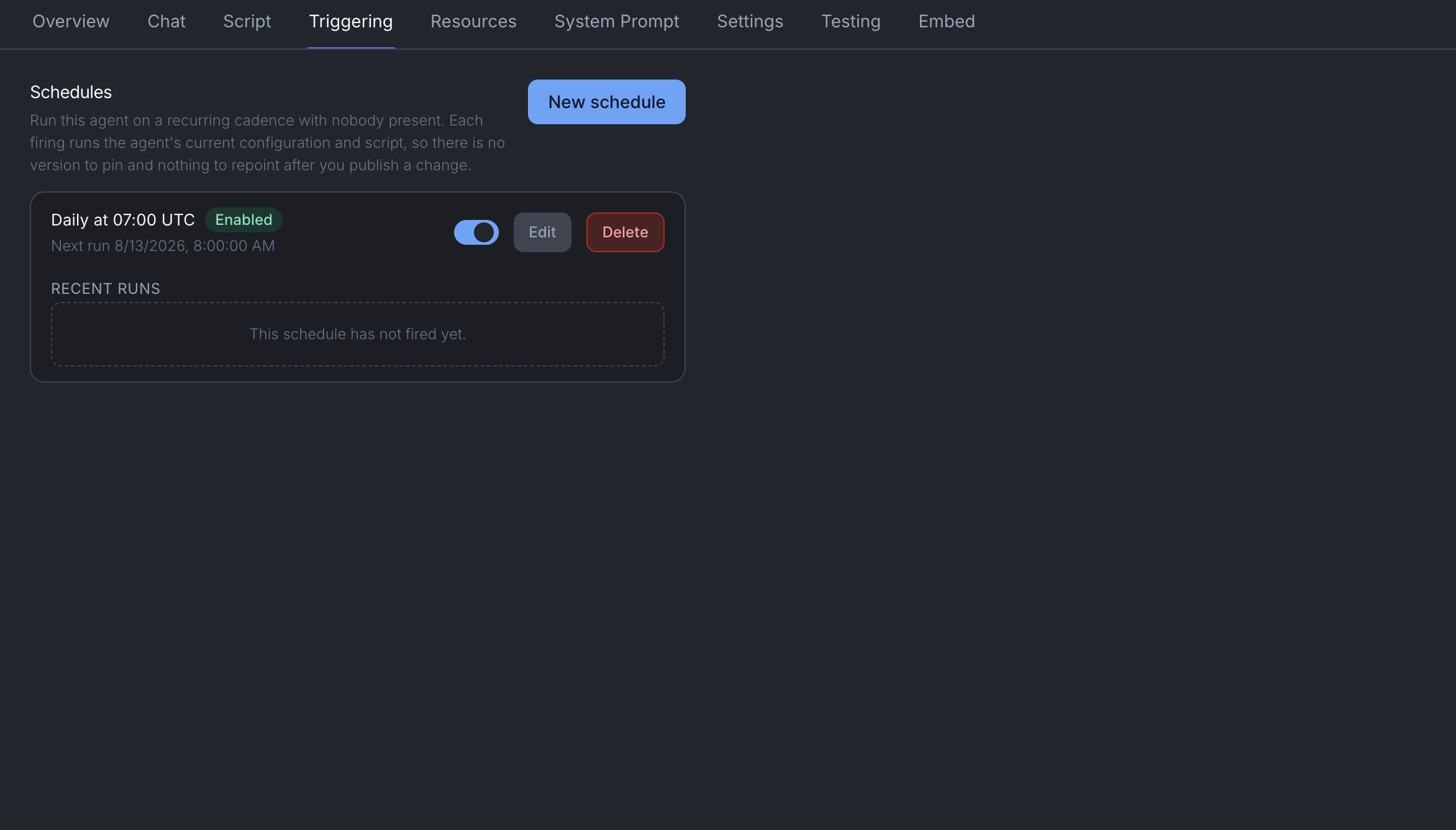
Set up a schedule
- Open the agent and go to the Triggering tab.
- Under Schedules, add one. Choose Every N minutes (30 minutes at the shortest), Daily, or Weekly with the days under Repeat on.
- Set Time of day (UTC). Times are in UTC. There's no time zone picker.
- Turn on Enable this schedule.
Each schedule shows its next run, a Run now button, and a Recent runs table.
Creating a schedule takes effect at once. Changing an existing schedule's timing is an edit to the agent, so it goes live when you save and activate the new version. See What saving actually does.
Set a schedule to how often the data changes. An agent that runs hourly against data that updates daily costs 24 times what it needs to.
Call it from your own software
- Go to Settings → API keys and create a key. It's shown once, right after you create it, so put it straight into your secrets manager.
- On the agent's Triggering tab, open How to call using the API for the request to send.
The call starts a conversation and answers with its ID straight away. It doesn't wait for the agent's reply, because a run can take minutes. Come back for the result with that ID.
Pass an idempotencyKey in the request body. If you send the same key again, Mindset returns the first conversation and runs nothing, so a caller that isn't sure its request landed can safely retry.
Start it from another product's webhook
Use this when a system you don't control should start the agent, such as a CRM or a ticketing tool. That system can't hold your API key, so it signs each delivery instead.
- On the Triggering tab, go to Let another product start this agent and choose Set up an inbound source.
- Create the webhook source with the vendor's signing secret, and bind this agent to it.
- Open the source. Its page holds the delivery address, which includes your org and environment. Paste that address into the vendor's console.
The source's page also lists every delivery it has received, and the reason for any it refused.
The first delivery teaches Mindset how the vendor signs and doesn't start the agent. Every delivery after that is checked against the secret and starts a run.
Make sure it calls a particular function
Writing "always call the invoice comparison function" in the system prompt is a request the model can skip. A script makes it certain, with two things on the phase:
- List only the function. A phase can reach what it declares and nothing else, so don't give it anything else that could do the same job.
- Make the phase's exit condition depend on what the function returns. Mindset checks the condition and moves the run on. The agent can't move itself to the next phase.
The invoice agent's compare phase lists the comparison function, and its exit condition is that a comparison result exists. The agent can't leave that phase without calling the function.
The same works the other way. Leave a write operation off the early phases and the agent can't make that change while it's still gathering.
What a person approves
Every operation on a connection either reads or writes. A read never needs approval. A write needs consent before an agent can call it, and consent is given once per operation, not per call.
| Org setting | What happens to a new write operation |
|---|---|
| On (the default) | It's enabled as soon as it's added. The record names the org setting as what enabled it, not a person |
| Off | It waits as pending until a person approves it. After that, agents can call it |
The setting is Settings → Systems → Connections that change other systems, labeled Turn on connections that change other systems automatically.
With the setting off, a person signed in with admin rights approves each new write operation on the connection's Operations tab. When an agent adds a write that needs approval, it gets a link to that tab to pass on. If an agent calls a write that's still pending, the call is refused. It isn't queued.
Once an operation is enabled, a write happens when the agent calls it. Nothing holds an individual call for review.
An agent can never approve an operation, its own or another's. Approving and revoking aren't on any agent's tools, and the server refuses an approval that doesn't come from a signed-in person.
Approve one action during a run
When you need a person to decide on a specific action (approve this supplier query, reject that one), build it into the script with an $ask step. The phase posts a message to Slack with a button for each choice, and the run parks until people answer.
- Each item to decide gets its own buttons. One message can carry several decisions.
- By default anyone in the channel can answer. The author can limit it to named members.
- The author sets how long to wait (at least 5 minutes) and which phase to go to if nobody answers.
- A run that's been parked for 31 days is closed as abandoned.
Slack is the only place $ask can post today. See Write a script for the full step.
Design the decision
- Put it late. The invoice agent gathers, compares and assesses first, and asks only before it registers the query.
- Ask once for the batch. One message with every disputed line is a decision somebody reads. Fifty separate prompts get waved through.
- Put enough in it to judge. Name the invoice, the purchase order, each line that differs, the total value and the contract clause, so the person doesn't have to look anything up.
- Expect a slow answer. Somebody is at lunch, or it lands at 17:55 on a Friday. Don't build anything whose output goes stale in ten minutes.
Things to be aware of
- To cut off access at once, revoke the operation on the connection. Every call checks it, including calls in a conversation already under way.
- A conversation moves to the active version of the agent at its next turn. A run that follows a script finishes on the version it started with.
- A run started by your own software or by another agent doesn't record a trigger kind of its own. Schedules, webhooks and Run now do.
When it doesn't work
An agent's write was refused. The operation is still pending. Approve it on the connection's Operations tab, or check whether an admin turned off the auto enable setting.
It ran but never called the function. Either the phase didn't list the function, or its exit condition didn't need anything the function produces. A firmer line in the system prompt won't fix it.
The run is sitting still. It's probably parked on an $ask. Check the Slack channel for an unanswered message.
Nothing ran at all. Check that the schedule is enabled, and that a webhook source has had its first, teaching delivery.
You're done when
- A run appears with the trigger that started it.
- You can point at the phase that forces the function call, and the condition that makes it unavoidable.
- You know whether your org enables new writes automatically, and who approves them if it doesn't.
- Any decision that needs a person per action is an
$askin the script, and someone has answered one.