Docs / AMS / Share and change / Use your agents from Claude
View as MarkdownUse your agents from Claude
Call your org's Hub agents from Claude, Claude Code, Cursor or Copilot in VS Code, without opening the Hub.
After this page, you can call your org's Mindset agents from your own AI client. You ask Claude to run the invoice exceptions agent on INV-4471, Claude hands it the work, and the answer comes back into the conversation you're already in.
What this is
Mindset runs an MCP server for its users. MCP is a standard way for an AI client to see what another system offers and call it. Once you add Mindset's server to your client, your client can list the agents you can use in the Hub and hand one of them a task.
You don't need to be an admin. If an agent is available in the Hub, you can reach it this way. There is no key or token to copy. You sign in with your usual Mindset account the first time your client connects.
Mindset runs two MCP servers:
| Server | Name in your client | What it gives you | Who can use it |
|---|---|---|---|
| For users | mindset | The agents available in the Hub, to list and call | Every member of the org |
| For administrators | mindset-admin | Building and managing agents, connections and other resources, reading the audit trail, governing the org | Org admins only |
This page covers the users' server. Admins set up the administrators' server from Settings → Systems → Connect an AI client.
Supported clients
The setup panel has instructions for Claude Code, Cursor, Copilot (VS Code), Claude Desktop and Claude.ai. ChatGPT isn't one of them.
How to do it
- Open the Hub and find Use your agents from your own AI client. If an admin sent you a setup message, its link takes you there.
- Pick the tool you work in. The panel gives you something to copy.
- Paste it into your client.
- Claude Code: paste the prompt into a session. It runs
claude mcp addwith the server address, then asks you to run/mcp, pickmindsetand sign in in the browser. It also adds a short "Using Mindset" note to the project'sCLAUDE.md. - Cursor and Copilot (VS Code): paste the prompt into the client's agent. It writes the server into the project's MCP settings and a short note for the agent.
- Claude.ai: go to Customize → Connectors → + → Add custom connector and paste the address. On a Claude Team or Enterprise plan, an Owner adds the connector once in Organization settings → Connectors, and everyone else finds it under Customize → Connectors and clicks Connect.
- Claude Desktop: add a custom connector in the app's connector settings and paste the address.
- Claude Code: paste the prompt into a session. It runs
- Sign in with your Mindset account when the client asks.
- Ask what you can call. For example, "list the Mindset agents available to me". Your client calls
list_callable_agentsand shows the agents you can use, each with its description. - Call one. "Use the invoice exceptions agent on INV-4471." Your client calls
call_agent, the agent runs in Mindset, and the result comes back into your conversation.
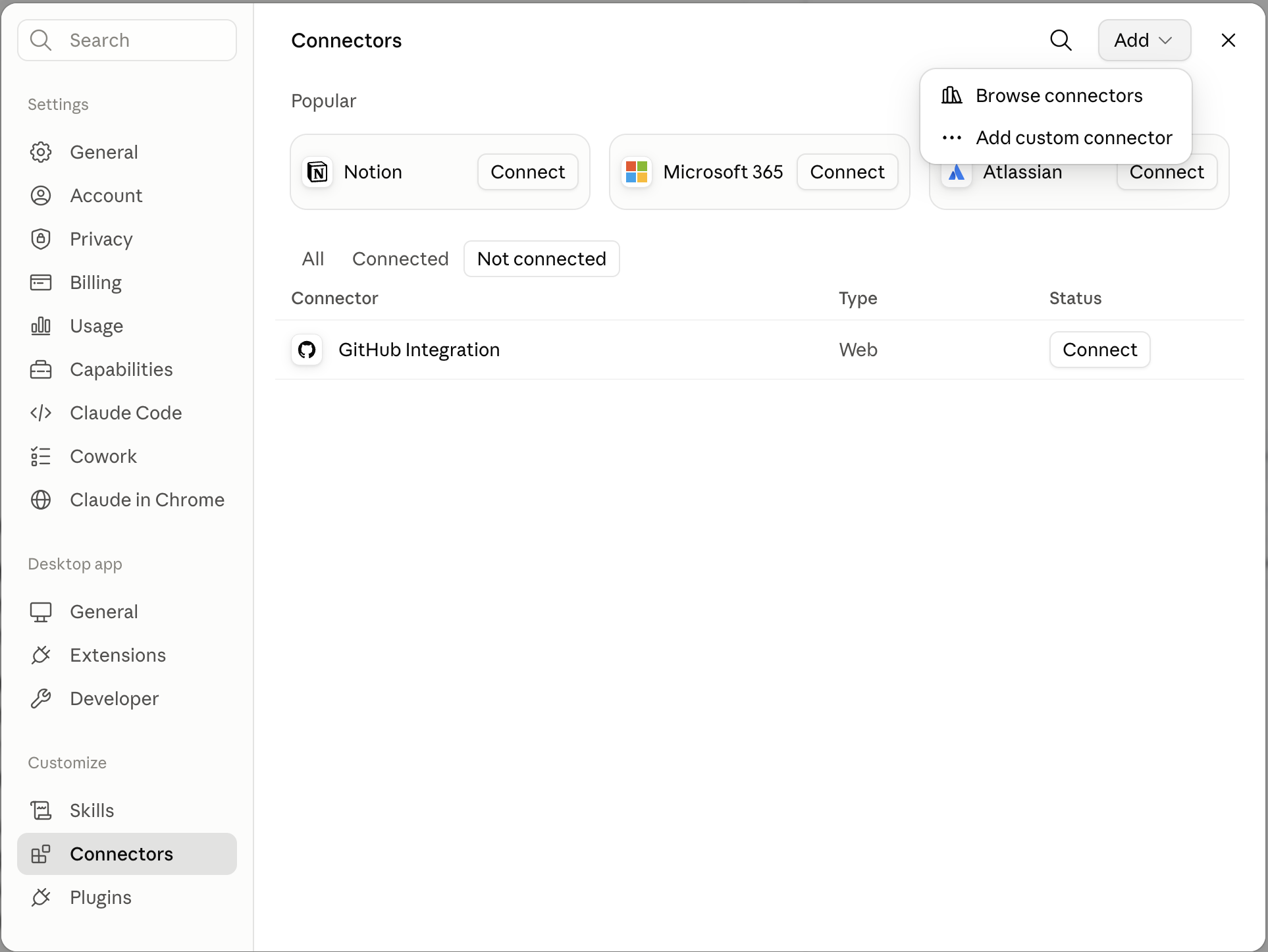
For admins: invite your people
In Settings → Systems → Connect an AI client, choose For users. The panel gives you a message to send by email or Slack, with Copy the message. It points people to their Hub page, where they pick their own client. Don't send them the administrators' address. Members can't reach it.
The panel's footer shows how many people have connected.
What you should see
- Only the agents available in the Hub. An agent that isn't available in the Hub doesn't appear, even if it exists.
- An answer in your client's conversation.
- A record in AMS. Every call is a run like any other, recorded against you. An admin finds it in Govern → Log, and its cost under Govern → Monitor → Cost.
Things to know
- The agent uses its own permissions, not yours. It reaches the operations it was given, whichever route you came in by. Calling it from Claude doesn't make it able to do more or less than it can in the Hub.
- A call can't be canceled once it starts. If your client times out or you close the window, the agent carries on and finishes in Mindset.
- Long calls come back as "working". Mindset holds the call open for up to 30 seconds. If the agent is still going, the call returns the state
workingwith no text. The agent hasn't stopped, but this server can't fetch the reply afterward. Don't call it again, because that starts a second run, and any writes in it happen twice. Check back later or ask an admin to look at the run. - A run has a time limit. An agent called this way gets about four minutes per turn. Work that takes longer is better started by a schedule. See Limits and run behavior.
- The address names one environment. The server address includes the environment, so you see only agents in that environment. If one you expect is missing, check which environment the address is for.
- Writes that aren't approved yet are refused. If one of the agent's write operations is still waiting for a person to approve it, the agent can't use it. Calling from Claude never approves anything. See Making it run, and approving what it does.
When it does not work
- The list is empty. No agent in that environment is available in the Hub. Ask whoever owns the agent to tick The Hub for it.
- The administrators' address returns not found. You aren't an org admin. Use the users' server from the Hub.
- Your client reports a timeout or
working. The agent hasn't failed. Don't re-send. Wait, then check the result with whoever can read the run. - The agent says it can't do the step that changes something. The write operation is waiting for approval. An admin approves it on the connection's Operations tab.
You're done when
- You can list your agents from inside your client.
- You've called one and seen its answer.
- You know a
workingreply means wait, not retry.