Docs / AMS / Connect / Connect a system
View as MarkdownConnect a system
Connect an outside system, get named operations on it, prove they work, and control exactly what your agents can do to it.
After this page you can connect your finance system, get working operations on it, check you reached the right account, and say exactly what your agents can and can't do to it.
What this is
A connection is a link to one outside system: its address and the credential for it. Mindset holds the credential. The agent never holds it and it never reaches the model.
An operation is one named thing an agent can do on a connection. It has a fixed input and output, and it's marked read (it fetches something) or write (it changes something).
An agent is never given "the finance system". It's given operations:
| Operation | It takes | It returns | Kind |
|---|---|---|---|
get_invoice | An invoice number | The invoice and its line items | Read |
get_purchase_order_for_invoice | An invoice number | The purchase order and its line items | Read |
get_supplier | A supplier ID | The supplier record, with payment terms | Read |
register_supplier_query | An invoice number and the text of the query | Confirmation that the query is registered | Write |
The list of operations enabled on a connection is the complete list of what agents can do to that system. You can read it, and so can your auditor.
For the invoice exceptions agent you need two connections: the finance system and the supplier contracts knowledge base. This page covers the finance system. For the others, see Connection types.
Start with the builder
Open Connections and press + New connection. You get two choices:
- Describe it to the builder. Tell the Connection Builder what you need, for example "the invoice agent needs to look up purchase orders in our finance system". It works out the connection and its operations with you, and asks for what it needs as it goes.
- I will set it up. Pick a type, enter the address and the credential yourself, and test it before anything goes live.
Orca uses the same builder when a plan includes a connection.
When a builder needs a credential, it opens a form titled Enter a secret value. What you type is stored on the connection and never shown to the assistant.
How operations are found
You don't write operations by hand, but how they're found depends on the system.
| What you connected | How operations are found |
|---|---|
| An HTTP API that publishes a description of itself | The builder looks for an OpenAPI or GraphQL description at the standard paths on that host, using your credential |
| An HTTP API documented on a web page | You give the builder the address of one documentation page and it reads that page. Your credential isn't sent to it |
| A Postgres database | The builder reads the tables and checks what your database login is allowed to do |
| An MCP server | Press Discover tools on the Overview tab. Mindset asks the server for its tools |
| A Google Sheet | Nothing to find. It has two fixed operations: read a range, and append a row |
Everything found comes back for you to confirm. Nothing switches itself on.
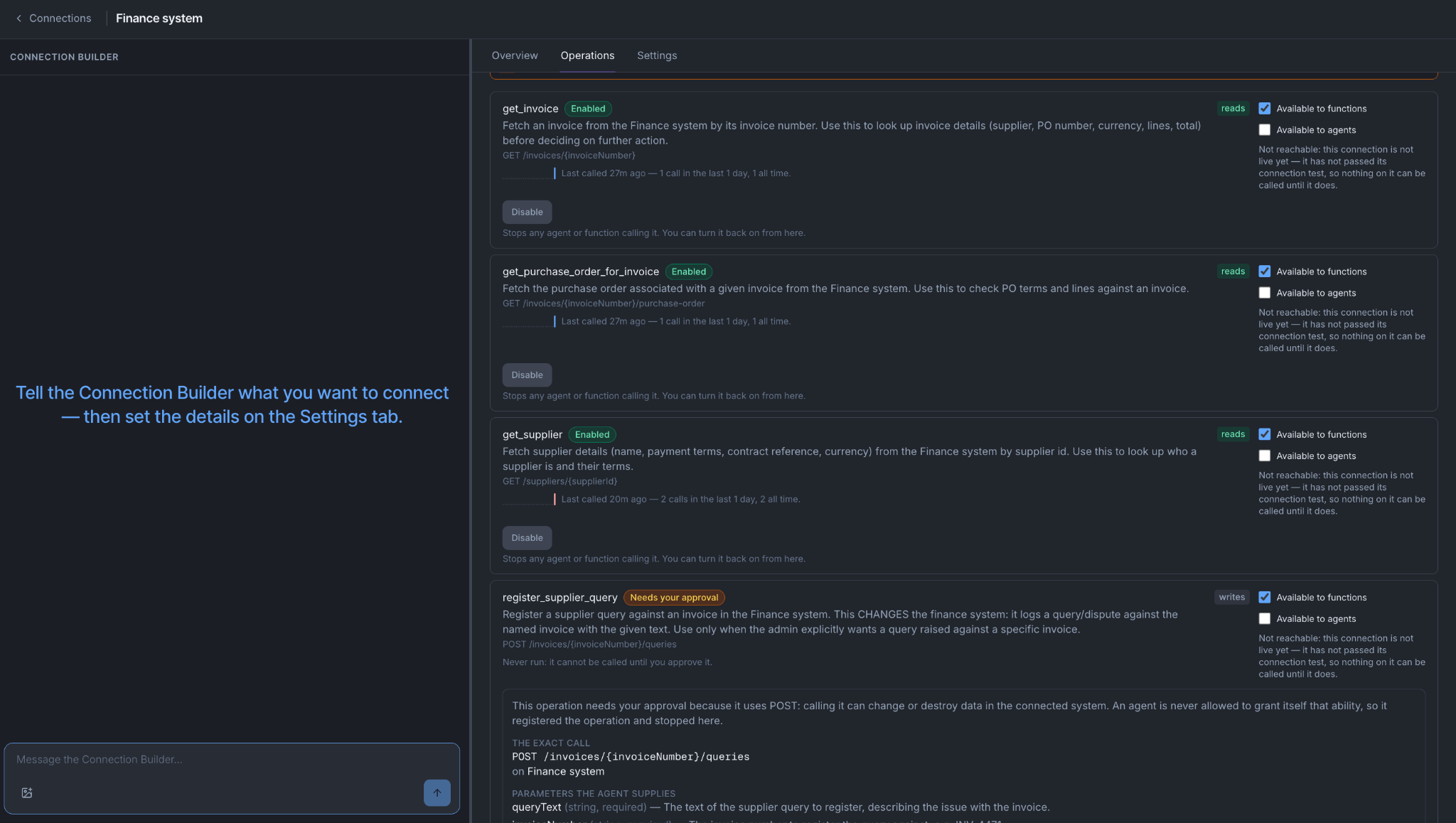
Enabling a read proves it works
When you enable a read on an HTTP API, Mindset makes one real call and enables the operation only if it worked.
Say you enable get_purchase_order_for_invoice and give it a real invoice number, INV-4471. Mindset calls your finance system once with your credential. Two things follow:
- You find out now whether it works. A wrong credential, a changed path or a missing parameter fails here, while you're looking at it, instead of in the middle of a run next week.
- The output shape comes from the real response. If the documentation says a field is
unit_priceand your system returnsunitPriceExVat, the operation returnsunitPriceExVat.
The second point keeps the rest of the workflow standing. The invoice comparison function reads line items from this operation's response. Had the shape come from the documentation, the function would read fields that don't exist, find no lines, and report no differences on every invoice without an error.
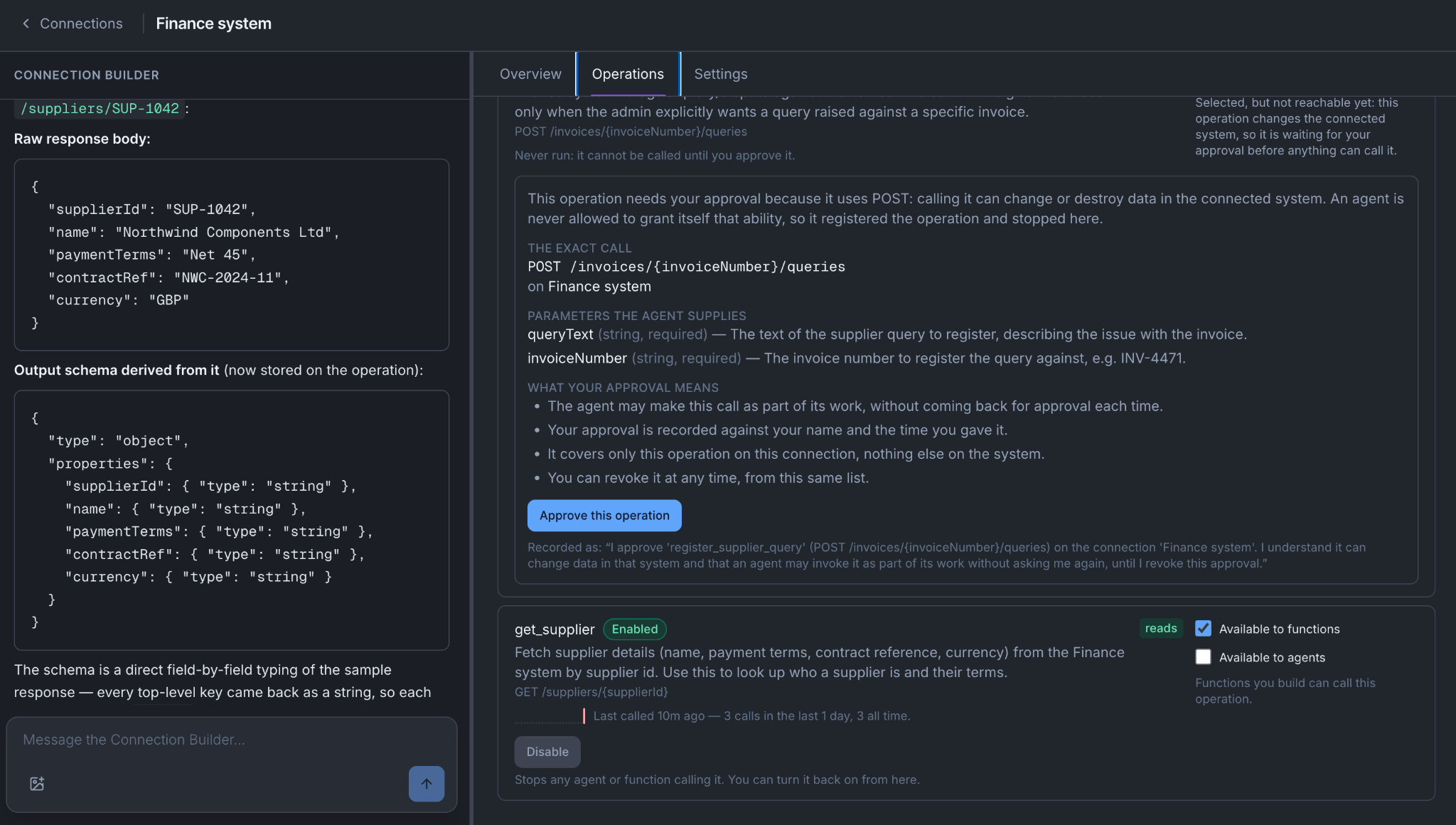
A query on a database
Say supplier payment terms live in Postgres and you enable a query that reads them.
- Your login's privileges are checked first. If it can't read the suppliers table, enabling stops and gives you the exact
GRANTstatement to send to whoever owns the database. - Then the query runs on the live database inside a transaction that is rolled back. You see real rows and the database is left as it was.
An enabled query is available to functions. To let an agent use it, call it from a function, or mark it Available to agents.
A tool on an MCP server
Enabling an MCP tool makes no test call. What matters most is whether the tool reads or writes.
Mindset marks each tool from the hints the server publishes about it. A tool with no clear hint is treated as a write. An admin can change the marking, and then discovery leaves it alone.
Get this wrong in the safe direction. A read marked as a write only needs an approval it didn't need. A write marked as a read changes your system with nobody asked.
Writes
Enabling a write makes no test call, because a test would change something in your system. What happens next depends on one org setting.
Settings → Systems → Turn on connections that change other systems automatically is on by default. While it's on, a new write is enabled straight away and agents can use it. The record names the org policy as the approver, not a person.
When an admin turns it off, each new write waits with Needs your approval until a person presses Approve this operation. The approval covers the operation, once. It isn't asked again for each call. If the operation's definition changes later, the approval is voided and has to be given again.
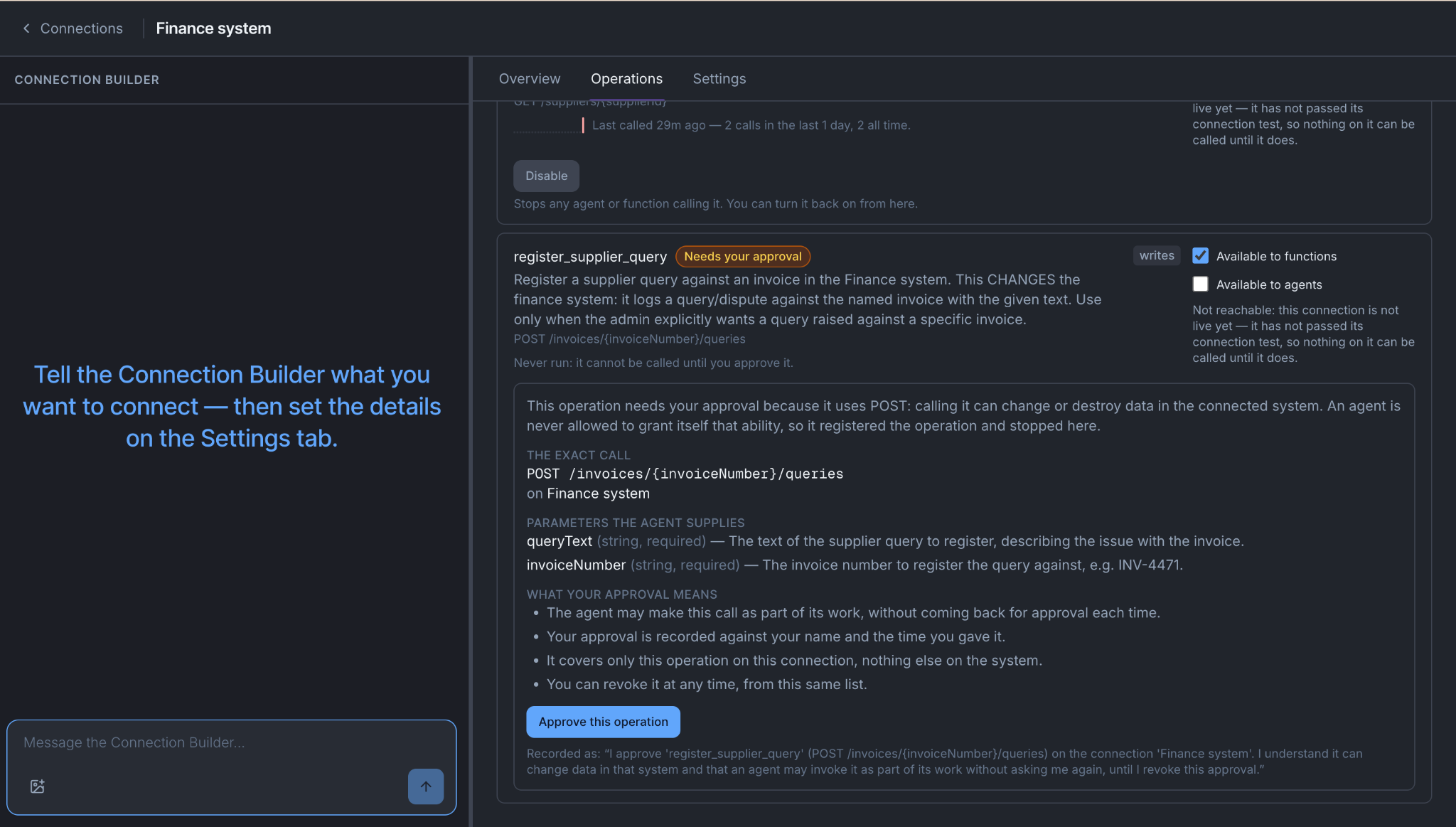
An agent can never approve an operation. No agent tool can approve or withdraw an approval. Withdraw approval on the connection stops the operation, and the org setting doesn't switch it back on.
To have a person agree to each individual supplier query, build that into the agent's script as a phase that asks in Slack and waits. See Write a script.
Because an enabled write isn't test-called, Mindset doesn't know its output shape until it has run. Check the first real calls.
What has to be true before an agent can call an operation
| The question | Where it's answered | |
|---|---|---|
| 1. Enabled | Is the operation switched on? | On the connection |
| 2. Available | Is it marked Available to agents (or Available to functions)? | On the connection, per operation |
| 3. Approved | For a write: is it approved, by a person or by the org setting? A read needs no approval | On the connection |
| 4. Assigned | Is it on this agent's Resources tab, in the active version? | On the agent |
An operation that is enabled but available to nothing reads "Not available to anything yet. Tick who may call this operation." Mindset won't make an operation available to agents until it has a description, because the model chooses which tool to call from that description.
For the invoice workflow:
| Operation | Enabled | Available to | Approved | Assigned |
|---|---|---|---|---|
get_invoice | Yes | Agents and functions | Not required | The agent, Gather phase |
get_purchase_order_for_invoice | Yes | Agents and functions | Not required | The agent, Gather phase, and the comparison function |
get_supplier | Yes | Functions | Not required | Nobody yet |
register_supplier_query | Yes | Agents | Granted once | The agent, Prepare phase only |
The first three are checked again when the agent runs, not only when you assign the operation. Switching any one of them off on the connection stops agents using it, without a new agent version. The fourth is part of the agent's version: removing an operation from an agent takes effect when you activate the version without it. See What saving actually does.
If you connected an MCP server
Whoever runs the server can add, remove, rename or change its tools without telling you.
- A tool you never enabled can't be used. New tools arrive switched off.
- A tool you enabled can change underneath you. The name stays the same and the behavior doesn't.
- Press Discover tools again when you know the server changed. Your settings survive. Tools the server dropped are hidden, not deleted.
The Tools tab shows tool-quality suggestions, such as vague names or short descriptions. They don't block anything. Take them seriously anyway: a bad description means the model picks the wrong tool on every run.
Check you reached the right account
A connection that saves cleanly proves the form was filled in. It doesn't prove you're talking to the account you meant. Most credentials work across several accounts, and a credential pointed at the wrong account returns perfectly valid data. Nothing errors.
Check once, before you build on it:
- Run one read on its own. Use the response shown when you enable the read, the Query console for a database, Data preview for a sheet, or the Tools tab for an MCP server.
- Find one value you can verify elsewhere: the supplier name, the purchase order total, the date.
- Have someone in finance open the same purchase order and compare.
If an environment points at a sandbox copy of the finance system, check there too, against a record you know exists in the sandbox.
How to do it
- Connections → + New connection. Name it for the system it reaches, not the project you're doing.
- Get the operations with the builder, or Discover tools for an MCP server.
- Enable the smallest read you need and look at what comes back.
- Check one value you can verify independently.
- Enable the other reads, then the write.
- Mark each operation Available to agents or functions.
- Give the operations to the agent. On the agent's Resources tab, add them, press Save as version, then activate the version on Versions & Availability.
The tabs
Which tabs you see depends on the connection type.
| Tab | What it's for | Shown for |
|---|---|---|
| Overview | The connection's state. Discover tools and Validate connectivity | Every type |
| Tools | Enable, disable and run the server's tools | MCP server |
| Operations | Enable, approve, withdraw approval, and choose who each operation is available to | HTTP API, Postgres, Google Sheet, StackOne, AI model |
| Knowledge | Try a sample search | Knowledge base |
| Query console | Run a query and look at the result | Postgres |
| Data preview | Read the sheet | Google Sheet |
| Settings | Name, description, credential | Every type |
What can go wrong
The builder finds no API description. The system doesn't publish one. Give the builder the address of its documentation page, or describe the endpoint you need.
Enabling fails on a database query. Read the error. It names the privilege your login is missing and gives you the GRANT statement for the database owner.
Enabling a read fails with an authorization error. The credential is valid but scoped narrower than this operation needs. It's the same error you'd have hit mid-run.
The connection has no operations. A connection can save cleanly with nothing on it. Check its Tools or Operations tab.
It works here and the agent still can't call it. Work through the four questions in order: enabled, available to agents, approved, and assigned in the active version.
The data is right but from the wrong place. Check the account, not the connection.
You're done when
- One read returned data you checked against what finance sees on their own screen.
- Every operation the workflow needs is enabled, and you can say who each one is available to.
- You know whether your write was enabled by the org setting or approved by a person.
- You can answer all four questions for any operation on the connection.