Docs / AMS / Share and change / Agent versions
View as MarkdownAgent versions
Save changes to an agent as numbered versions, try one before anyone meets it, compare two, and activate or roll back in one step.
After this page, you can change an agent people already use, try the change before they meet it, and put it live or take it back in one step.
What this is
Each time you save a change to how an agent behaves, Mindset keeps it as a numbered version: version 1, version 2, version 3. Saving never changes what people get. A version reaches them only when you activate it, and an agent has at most one active version.
This page is for org admins. Only admins can see, compare, try, activate or delete versions.
What a version records
A version is a full record of everything that shapes how the agent behaves:
- The five prompt fields: Purpose, Personality, Background, Policy rules and Output formatting
- The model
- The reply language
- The agent's name
- Which script the agent runs, and the text of that script
- The resources it can use: operations on connections, knowledge, widgets, functions and other agents
- Its schedules, including their instructions
Availability is outside versions. It decides where the agent can be reached, not how it behaves, so a change to it applies when you save and records no version. See Where your agent can be reached. The agent's description is outside versions too.
Save a change
You can edit on as many tabs as you like before saving once. The top bar shows a purple dot and Unsaved changes, and each tab you edited gets the same dot. Your edits stay as you move between tabs.

Press Save as version. Everything you changed becomes one new version. The bar then reads Saved as version 7. with a Make it active link. The agent still runs on the version that was active before.
If you try to leave the page with unsaved changes, Mindset warns you first. If a colleague saves or activates a version while you work, the bar says so, for example "Someone else saved version 8". Your own edits stay where they are, and your save builds on the version you opened.
Find your versions
The tab lists every version, newest first, ten to a page. Each row shows the version number, when it was saved, who saved it and its status.
| Status | Meaning |
|---|---|
| Active | The version people are talking to now |
| Previously active | Was active at some point, and isn't now |
| Never active | Saved, and never made active |
| Currently viewing | The version this browser tab shows. Your next save builds on it |
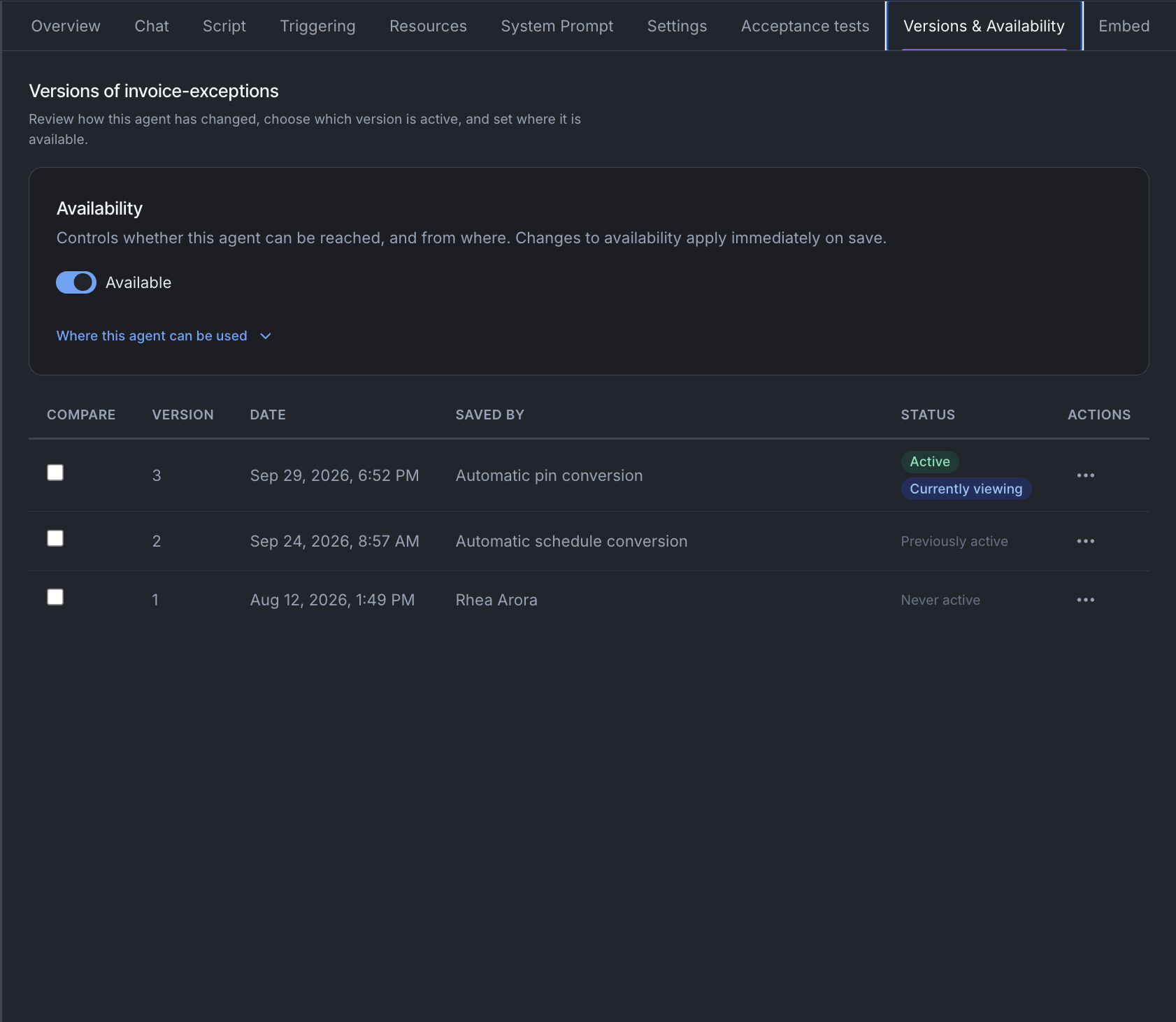
Each row's menu has three actions:
- Activate version N makes it the version people get.
- Open version N shows that version on every tab of this page, so you can read it or build your next save on it. Save or discard unsaved changes first.
- Delete version N takes it out of your list.
Activate a version, or go back
Activating is its own step, so nothing goes live by accident. Choose Activate version N and confirm in the Activate version N? dialog. The dialog says what happens: conversations already in progress finish their current turn on the version they started, and use version N from their next turn.
Going back is the same action. There is no separate rollback button. Activate an earlier version and the agent returns to how it behaved then. If the version you picked isn't built on the latest one, the dialog warns you that it isn't the latest.
Going back restores everything the version records. It doesn't bring back earlier versions of functions and widgets. A version records which functions and widgets the agent uses, not which version of each, so the agent uses whatever version of each is published now.
Two more things to know:
- Your whole org gets the same active version, in that environment. You can't keep one group of people on an older version.
- Going back can remove resources. Resources are part of a version, so activating an older one drops anything you added since.
Versions that can't be activated
Mindset refuses to activate a version that can't run as recorded. It refuses when:
- The version was saved before Mindset recorded the whole agent in each version. Its Activate item says so.
- Something it uses has been deleted or archived. The row shows Cannot run again.
- Something it uses is switched off: an operation that is disabled, hidden, waiting for approval or no longer offered to agents, or a connection that is switched off. The row shows Switched off. Switch it back on and the version can be activated.
- Its script is now attached to a different agent. A script belongs to one agent, so detach it there first.
- Its model isn't served in your org's region.
Hover over the badge to read every reason. Mindset refuses rather than half restoring an agent, so what you activate is what you get.
One more check runs when a version puts a new script text live. If the script calls an operation that has never had a successful call, activation stops and lists those operations. A test run of the script makes them tested. An admin can also tick Go live with these untested and press Go live untested, which is recorded with their name and an optional reason.
Compare two versions
Tick any two versions, then choose Compare the two selected. The panel lists each part of the agent as Changed or Unchanged, from the older version to the newer. For the name, the model and the reply language, it shows the old and new values.
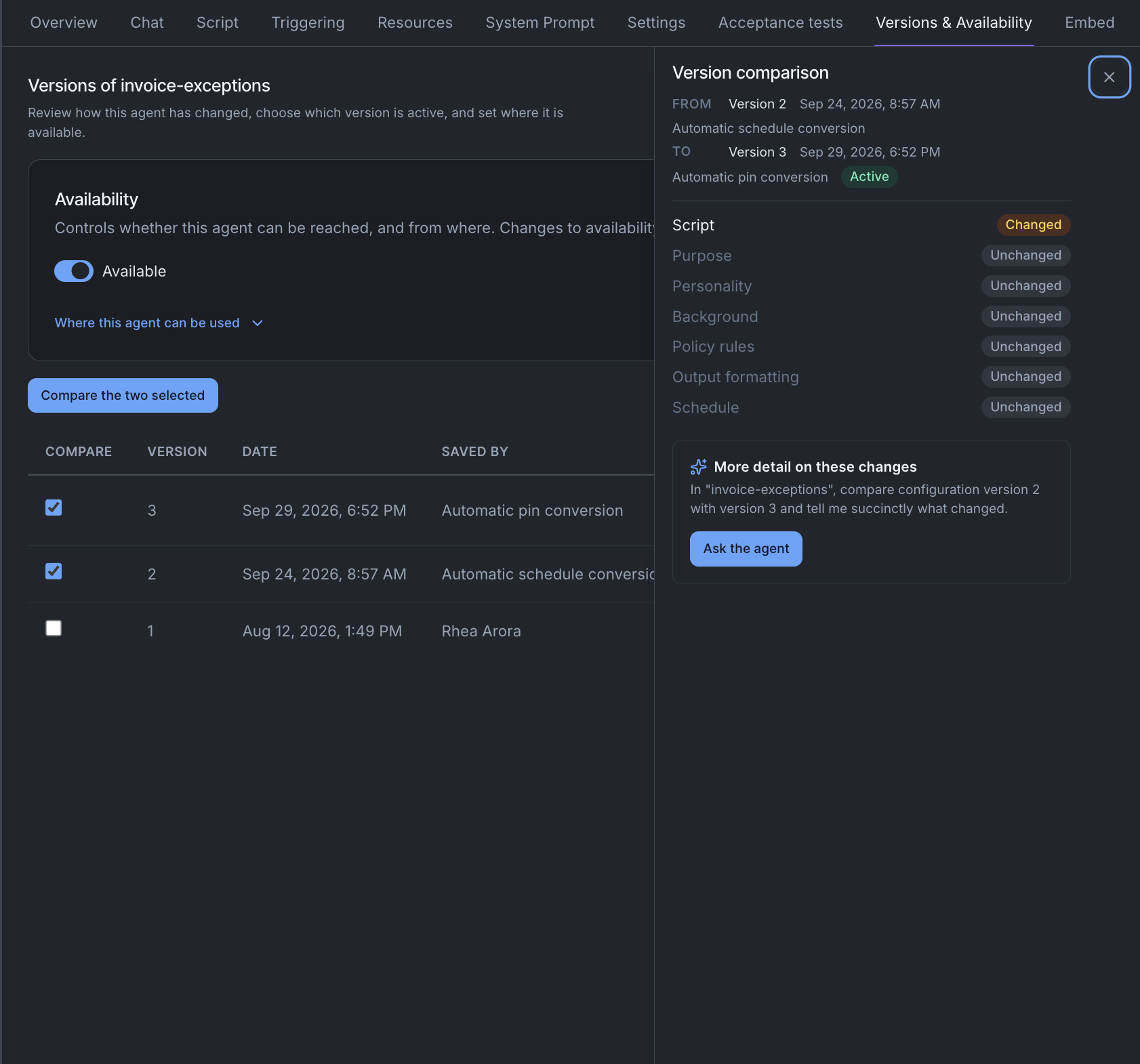
For the rest (prompt wording, script, resources, schedules), the More detail on these changes card hands the question to the Agent Builder, which explains in plain words what differs.
Try a version before people meet it
The Chat tab has a version picker. Choose any saved version and talk to it while everyone else keeps talking to the active one. Each reply shows "Answered by version N".
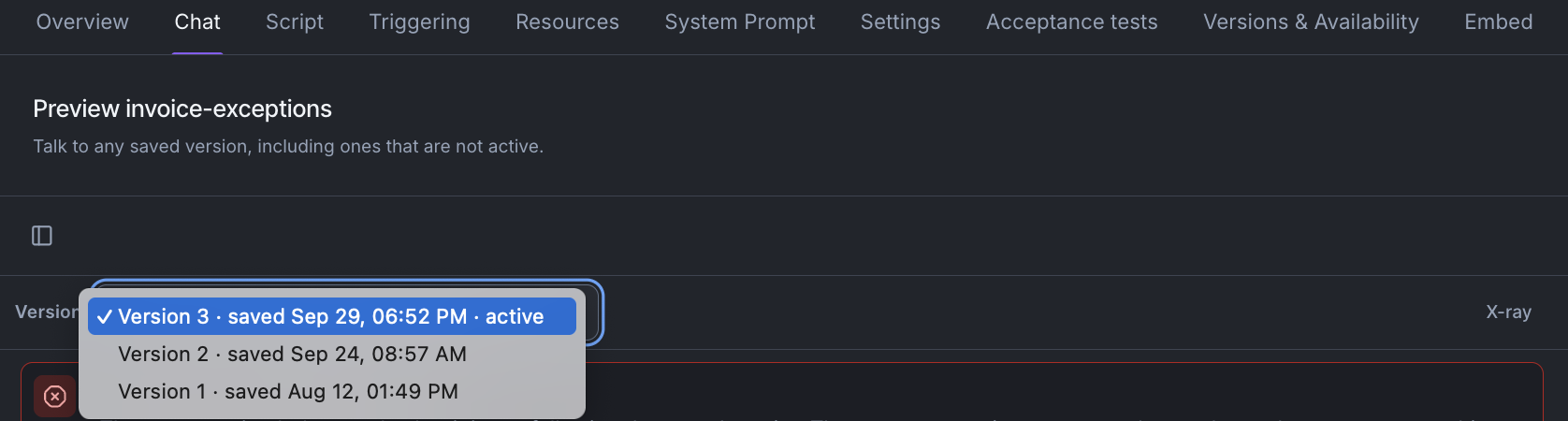
The picker starts on the active version, or the latest one when none is active. Changing the version starts a new conversation.
A version that isn't active doesn't write to your systems on its own say. If it can write, the Chat tab says which systems and refuses those writes until you press Agree writes. After that, its chat turns perform the agreed writes for real.
On the Triggering tab, Run now runs the version this browser tab shows, so you can try a scheduled task too. A run of a version that isn't active is marked Rehearsal.
Delete a version
Choose Delete version N from its menu and confirm. The version leaves your list and can no longer be opened, compared, tried or activated. Mindset keeps its record, so runs that used it still name it.
You can't delete the active version. Activate another one first. You can't delete an agent's only version.
See which version answered
Every conversation and run records the version that produced it:
- Chat tab. Each reply shows "Answered by version N".
- Log. An event's detail panel shows the version that ran.
- Triggering tab. A schedule's run history shows the version beside how the run started: Scheduled, Manual or Webhook.
People using the agent never see version numbers. Conversations from before versions were recorded show none.
Every save, activation and deletion goes into the audit log with who did it and when. An activation also records which version was active before and which is active after.
You're done when
- You saved a change as a version and tried it on the Chat tab before activating it.
- You compared two versions.
- You activated an earlier version once, so you know where it is before you need it in a hurry.