Docs / AMS / Share and change / Where your agent can be reached
View as MarkdownWhere your agent can be reached
Switch an agent on or off, choose the six places it can be used from, and know why an agent shows as Unavailable.
After this page, you can switch an agent on or off, choose exactly where it can be used, and tell why it shows as Unavailable.
What this is
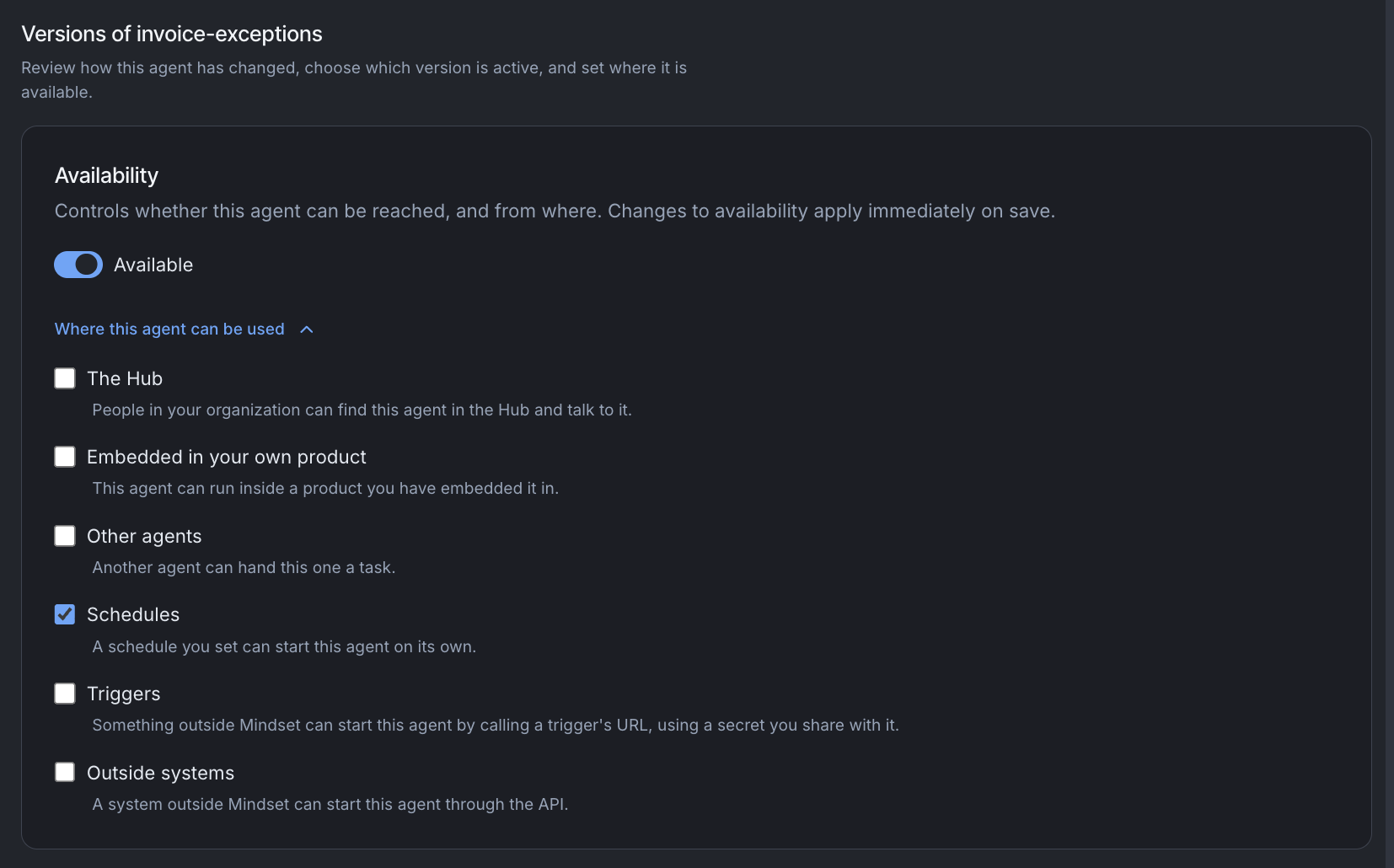
Availability lives in the Availability card at the top of the agent's Versions & Availability tab. It has one switch, Available, and a link, Where this agent can be used, that opens six checkboxes.
Availability is outside versions, so switching an agent off takes effect without anyone activating anything. A change applies when you press Save and records no version.
The Available switch
Turn it on and the agent can be reached from the places you ticked. Turn it off and it can't be reached from anywhere. That makes it the quick way to take an agent out of service.
Switching off blocks new runs and stops a multi-step run at its next step:
- A turn that is already running finishes, including any operations it calls.
- A run waiting on a timer, an answer from a person or an outside event can't continue. When it tries to resume, it is refused.
- That waiting run isn't closed straight away. It shows as active until Mindset gives up on it, after about an hour.
To stop something this minute, disable the operation or withdraw its approval on the connection instead. That is checked on every call. See Connect a system.
Choose where it can be used
Select Where this agent can be used below the switch. Tick any combination of the six:
| Checkbox | What ticking it lets in |
|---|---|
| The Hub | People in your org can find the agent in the Hub and talk to it. This also covers using it from Claude and other AI clients |
| Embedded in your own product | The agent can run inside a product you've embedded it in, so your own customers can use it in your app |
| Other agents | Another agent can hand this one a task, so it can work as a helper to a lead agent |
| Schedules | A schedule you set can start the agent on its own, for example every Monday morning |
| Triggers | Something outside Mindset can start the agent by calling a trigger's URL, with a secret you share with it. For example, a form tool could start it when a form is submitted |
| Outside systems | A system outside Mindset can start the agent through the API, with one of your org's API keys |
Triggers and Outside systems are separate so you can open one without the other. A trigger is started by another tool through the trigger's own URL and secret. Outside systems means your own backend calls the agent directly with an API key.
An API key belongs to one environment and works only there. An environment can have several live keys at once. The org owns a key, not the person who created it. A key used against a different environment is refused as though that environment didn't exist.
One overlap to know about: when The Hub is ticked, a lead agent that a person in your org is talking to can still hand this agent a task, even with Other agents unticked. Other agents matters for a helper that isn't on the Hub.
How the switch and the checkboxes work together
- Switch the agent on with nothing ticked, and all six boxes are ticked for you. Untick the ones you don't want.
- Switch it on with some boxes already ticked, and your choice is kept.
- Switch it off, and the boxes are grayed out but remembered. Switch it back on and the agent returns to the places you chose.
- Untick every box, and the switch shows as off.
New agents start switched off
A new agent starts with version 1 saved, no active version and every box unticked. Nobody but an admin can reach it until you choose where it can be used.
When the Agent Builder or Orca builds agents for you, it ticks only what its own wiring needs: Other agents for a helper the lead agent hands work to, and Schedules or Triggers if you asked for them. It never ticks The Hub, Embedded in your own product or Outside systems on its own. It tells you which agents it left unavailable.
When an agent is available
An agent is available only when all three hold:
- A version is active.
- The Available switch is on.
- At least one box is ticked.
Otherwise the agent shows an Unavailable badge. Hover over it to read why:
- "This agent's Availability switch is set to off."
- "No version of this agent is active."
- "This agent is not turned on anywhere it can be reached."
If you switch an agent on before any version is active, the card says that nothing can reach it yet, and that it becomes available as soon as you activate one.
When it does not work
- Your backend's request to create an embedded session is refused with a 403 and the code
agent_not_available_here. Tick Embedded in your own product. See Create a session for your users. - A schedule, trigger or API call is refused with
agent_not_available_here. The message names the box to tick: Schedules, Triggers or Outside systems. - A person gets "not found" for an agent you can see. People who aren't admins are told the agent doesn't exist rather than which box is unticked. Check the switch, the box and the active version.
Admin access
Org admins can open, edit and try an agent whatever its availability, even with every box unticked. You can build and try an agent before anyone else can reach it.
You're done when
- The agent's switch and boxes match where you want people and systems to reach it.
- The agent shows Available, or you know which of the three conditions is missing.