Docs / AMS / Govern / Approve what an agent can do
View as MarkdownApprove what an agent can do
Decide which write operations agents can call, approve or withdraw them once per operation, and have a person decide on single actions in Slack.
After this page you know which of your agents' actions change other systems, who agreed to each one, how to withdraw that agreement, and how to have a person decide on a single action during a run.
What this is
Every operation on a connection either reads or writes. A read never needs approval. A write needs consent before an agent can call it, and consent is given once per operation, not per call. After that, a write happens whenever an agent calls it. No individual call is held for review.
Each operation carries one of three consent states:
| Consent | Meaning | Can an agent call it? |
|---|---|---|
| Not required | No consent is needed. A read is registered this way | Yes, once it's enabled, available and assigned |
| Pending | It's a write waiting for consent. The UI shows Needs your approval | No. A call is refused, not queued |
| Granted | Someone, or the org setting, agreed to it | Yes |
For the invoice exceptions agent, the three reads (get_invoice, get_purchase_order_for_invoice, get_supplier) need nothing. The one write, register_supplier_query, needs consent once.
Your org's default: On (auto-enable)
One setting decides what happens to a new write operation: Settings → Systems → Connections that change other systems, with the switch Turn on connections that change other systems automatically.
| Setting | What happens to a new write operation |
|---|---|
| On (auto-enable), the default | It's granted as soon as it's added, with no person involved. The record names the org policy, not a person, as what granted it |
| Off | It waits as Pending until a person approves it on the connection |
The default is on so that an org standing itself up isn't met by approval screens nobody told it about. Turn it off when you want a person to agree to every new write. Only an org admin can change the setting, and no agent can reach it.
Approve a write
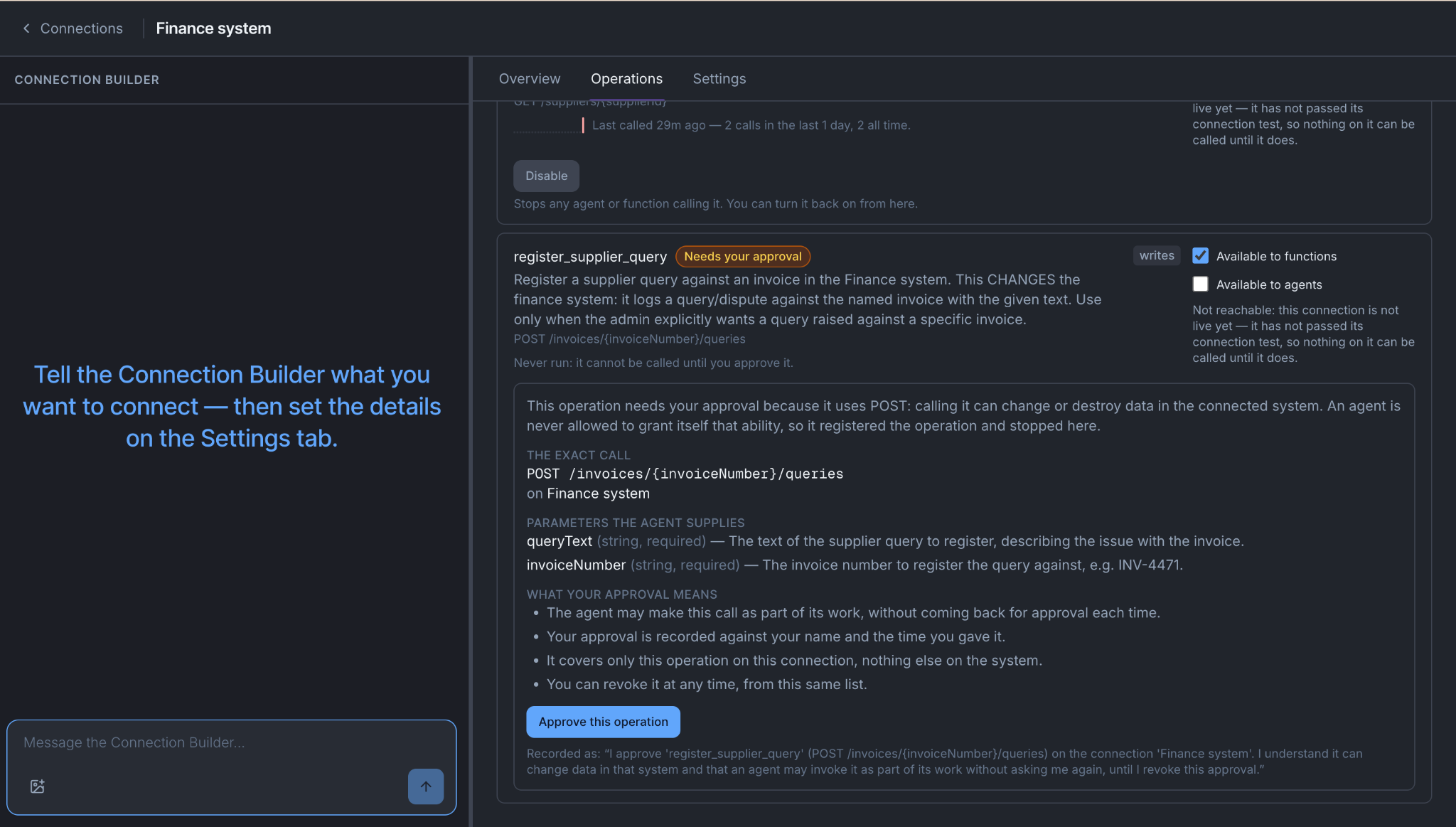
With the setting off, a new write operation shows Needs your approval on the connection's Operations tab (or the Tools tab for an MCP server).
- Open the operation. The panel shows The exact call it makes, the Parameters the agent supplies, and What your approval means.
- Read the call. For
register_supplier_query, check it's the method and path you expect on the finance system, and that the agent supplies only the invoice number and the query text. - Press Approve this operation.
Your approval is recorded against your name and the time. It covers only this operation on this connection. When an agent adds a write that needs approval, it gets a link to this tab to pass on to an admin.
If the operation's definition changes after you approved it, the approval stops applying. The panel says "This operation was corrected since you approved it", and you approve the new shape.
Withdraw approval or disable
| Button | On | What it does |
|---|---|---|
| Withdraw approval | An enabled write | Stops every agent and function calling it. The operation stays registered and goes back to Pending. The org setting doesn't switch it back on. You can approve it again |
| Disable | An enabled read | Stops every agent and function calling it. You can turn it back on from the same place |
| Disable | The whole connection, on its Overview tab | Every call to any operation on it is refused before anything leaves. Enable turns it back on |
Every call checks these, including calls in a conversation already under way. Neither needs a new agent version. To stop something right now, this is the fastest way.
An agent can never approve an operation
Approving and withdrawing are a person's acts. They aren't on any agent's tools, and the server refuses an approval that doesn't come from a person signed in with admin rights. That holds when agents call other agents, and it holds whichever way the org setting is set: auto-enable is one standing decision by an admin, and an agent authorizing itself is a different act.
Test runs are held to their own rule: a test can't write without an admin's go-ahead for its write list. See Test before it goes live.
Approve one action during a run
Per-operation consent can't say "yes to this supplier query, no to that one". When you need a person to decide on a specific action, the script author builds it in as an $ask step on a phase. The step posts one message to Slack, with a row of buttons for each item to decide, and the run waits until the decisions are made or the wait runs out. $ask posts only to Slack. See Write a script for the step itself.
- One message can carry several decisions. Every item shares the same buttons.
- By default anyone in the channel can answer. The author can name the members who may.
- The author sets how long to wait (at least 5 minutes) and which later phase to go to if nobody answers.
- A run still waiting after 31 days is closed as abandoned.
- A click on a question the run has moved past is answered with a message saying so.
Design the decision
- Put it late. The invoice agent gathers, compares and assesses first, and asks only before it registers the query.
- Ask once for the batch. One message with every disputed line is a decision somebody reads. Fifty separate prompts get waved through.
- Put enough in it to judge. Name the invoice, the purchase order, each line that differs, the total value and the contract clause, so the person doesn't have to look anything up.
- Expect a slow answer. Somebody is at lunch, or it lands at 17:55 on a Friday. Don't build anything whose output goes stale in ten minutes.
Set up Slack approvals
An $ask step posts through a Slack app connection in your own workspace. Nobody outside your workspace can create the app, so a person with Slack admin rights does the Slack half. It takes two visits to Slack, because the Request URL names a connection that doesn't exist until the app does.
- Create the Slack app from a manifest. In Slack, go to Your Apps → Create New App → From a manifest, pick the workspace, and paste the manifest the Connection Builder gives you. It asks for exactly one permission,
chat:write, and subscribes to no events, so the app never receives your channels' conversations. Install the app to the workspace. - Collect three values from the app's pages. The App ID and the Signing Secret are under Basic Information → App Credentials. Take the Signing Secret, not the Client Secret beside it. The Bot User OAuth Token (it starts
xoxb-) is under OAuth & Permissions, once the app is installed. - Create the connection. In Mindset, choose Connections → + New connection → Describe it to the builder and say you want Slack approvals. The builder asks for the three values. The two secrets go into the Enter a secret value form. Publishing checks the token with Slack, and the builder adds the
post_messageoperation the step posts through. - Turn on interactivity. On the connection's Settings tab, under Let a person answer in Slack, copy the Request URL. In the Slack app, switch Interactivity on, paste the URL and save. Slack checks the address as you save, so it must be a deployed environment Slack can reach.
- Invite the bot to the channel. In the channel, type
/invite @Approvals(or whatever you named the bot). Skipping this is the most common first failure.
The card on Settings shows whether both secrets are captured. With the bot token missing it can't post. With the signing secret missing it can post, but no answer can come back.
The channel isn't fixed on the connection. The script names it on each $ask, and the bot can post to any channel it's been invited to.
When it doesn't work
An agent's write was refused. The operation is still Pending. Approve it on the connection, or check whether an admin turned off the auto-enable setting.
A write you withdrew is still refused after you turned auto-enable on. That's intended. A withdrawn approval stays withdrawn until a person approves the operation again.
The Slack message arrives with no buttons. The post_message operation was registered without its blocks parameter. Ask the Connection Builder to add it.
People click and nothing happens. Check the connection holds the Signing Secret (not the Client Secret) and the right App ID, and that interactivity is on with the Request URL from Settings.
Slack won't save the Request URL. The environment isn't reachable from the internet. Use a deployed environment.
Nothing is posted. The bot isn't in the channel. Invite it.
You're done when
- You know whether your org enables new writes automatically, and who approves them if it doesn't.
- You can say, for every write the agent uses, whether it was granted by the org setting or by a named person.
- You know which button stops a write, which stops a read, and which stops a whole connection.
- Any decision that needs a person per action is an
$askin the script, and someone has answered one in Slack.