Docs / AMS / Build / Turn a skill or spec into an agent
View as MarkdownTurn a skill or spec into an agent
Turn a Claude skill, a prompt file, a spec or an MCP server into an agent your org owns, by reviewing and approving the plan Orca proposes.
After this page you can paste a Claude skill or a spec into Orca, correct the plan it proposes, and end up with an agent your org owns instead of one that lives in a single person's account.
What this is
Orca is the agent that plans and provisions other agents. You give it what you have. It reads what your org already has, proposes a plan, and stops. Nothing is built or assigned until you approve the plan.
Orca hands each piece to the builder for that kind of thing: the Connection Builder, the Function Builder, the Widget Builder and the Script Builder. Orca creates the agent itself and attaches everything to it.
Orca is in the workspace rail on the left. Only admins see it.
What each starting point becomes
| What you have | What it becomes |
|---|---|
| A Claude skill or a long prompt file | Prompt text on an agent. A script only if part of the skill must wait or must happen in order |
| A product spec or a plain description | The same: an agent, plus whatever connections, functions and widgets it needs |
| An MCP server | A connection, with each of the server's tools as an operation on it |
Skills become prompt text first
A skill is instructions for a model. In Mindset that is the agent's prompt, so most skills become prompt text and nothing else. The prompt has five fields: purpose, personality, background, policy rules and output formatting.
Orca proposes a script only when the skill holds an instruction the agent must not be able to skip: wait for an answer, or don't move on until something is true. Only that stretch of the skill becomes a script. The rest stays in the prompt.
Each prompt field holds up to 2,000 characters, and Mindset refuses anything longer. A long skill gets condensed to fit, and Orca tells you in its summary what it shortened. The full text isn't kept anywhere else.
What doesn't come across
Orca lists what it could not convert as part of the plan, in plain words, and repeats the list when it finishes. The usual items are:
- A bundled script, program or data file. Nothing in Mindset runs a skill's bundled code.
- A step that reads files on someone's computer.
- A system your org has no connection to yet.
- A write that nobody has approved for agents.
- A part that logs into a website and clicks through its screens. There is no operation to make from it. Ask whoever owns that system whether there is an API behind the screens.
Some shapes the script language refuses on purpose, and Orca names those too: a route back to an earlier phase, repeating an action once per item in a list (that belongs in a function), and a model named per phase.
MCP servers
An MCP server becomes a connection, with each of its tools as an operation marked read or write. See Connect an MCP server for how tools are marked and enabled.
How to do it
The running example is the invoice exceptions skill that someone in finance already wrote.
- Open Orca and choose Turn a Claude skill into an agent, or paste straight into the message box.
- Paste the skill in. All of it. There is no file upload for skills, so paste the text.
- Read the brief. Orca restates what it read: the agent's purpose, its tasks, the systems it touches, the screens it shows, the procedure it must follow, and what it could not convert. Correct anything it got wrong.
- Wait while it takes an inventory. It lists your existing agents, connections, functions and widgets so it can propose reusing one instead of building a second.
- Edit the plan card, as described below.
- Press Approve plan. Orca builds the rows marked Build it, in dependency order: connections, then functions and widgets, then the agent, then its script.
- Answer its testing questions. Orca asks for test inputs and, when a test writes, for your go-ahead. See Orca tests what it built.
Press Don't build this to stop. Nothing is built.
The plan card
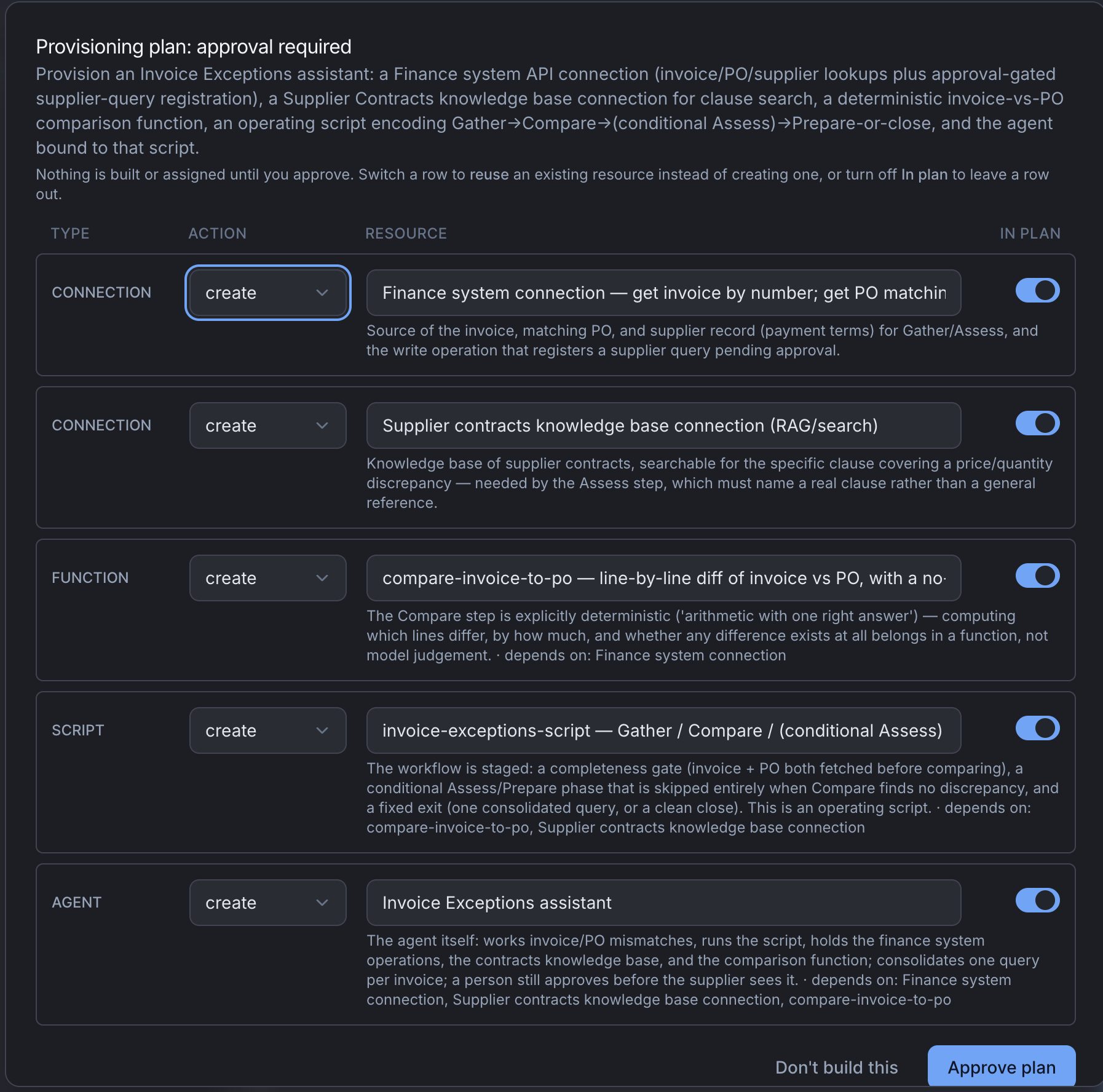
The card is titled Provisioning plan: approval required. Each row is one thing Orca proposes, with these columns:
| Column | What it does |
|---|---|
| Type | Connection, function, widget, agent, trigger or script |
| Action | Build it or Use existing. Switch to Use existing when you already have something that does the job |
| Name | The name of the new thing, or of the existing thing you're reusing |
| In plan | Switch a row off and it reads "Left out. This will not be built." |
For the invoice exceptions skill, expect rows like these:
| Type | Name | What it is |
|---|---|---|
| Connection | Finance system | The finance system's API, with three reads and one write |
| Connection | Supplier contracts | A knowledge base connection to the search server that holds your contracts |
| Function | Invoice comparison | Compares an invoice to its purchase order line by line |
| Agent | Invoice exceptions | The agent, with prompt text and the resources above |
| Script | Invoice exceptions script | The ordered part: gather, assess, then prepare the supplier query |
What to check before you approve
A row builds something you already have
Orca searches before it proposes a build, but it matches on names. A connection named after a project (Q3 spend review) that reaches your finance system can be missed.
- Open Connections in another tab.
- Ignore the names. Look at what each connection reaches: the host for an HTTP API, the server for an MCP server.
- If one reaches the same system as a Build it row, switch the row to Use existing and enter that connection's name.
- Do the same in Functions.
A duplicate connection means two credentials to rotate and two sets of operations to keep in step. Build a new one anyway when the existing one points at a sandbox, uses a credential for a different account, or belongs to a team that doesn't expect your agent to use it.
The writes are where you expect
The invoice agent should change exactly one thing: it registers a supplier query. Everything else is a read. If the plan includes a write you didn't ask for, switch that row off and ask Orca why it was there.
A function isn't making a judgment
A function gives the same answer for the same input. Comparing an invoice to a purchase order qualifies. Deciding whether a difference is acceptable under the contract does not, and belongs with the agent. If a function's name contains "assess" or "decide", ask what it does.
The script is short
The script should cover only the part that must happen in order. If every sentence of the skill became a phase, tell Orca to move the behavior back into the prompt.
Orca tests what it built
Orca doesn't call a script or function built until a test run has exercised it. Expect these questions after you approve the plan:
- Test inputs. Before it hands a script or function to its builder, Orca asks you for test inputs, one example for each path through it. For the invoice script, that's an invoice that matches its purchase order and one that doesn't. The builder keeps them as that script's or function's test parameters.
- A go-ahead for writes. When a test run would write to a connected system, such as registering a supplier query, Orca tells you what the run will read and write, and waits for your go-ahead. Point the write at a test record if you can.
- The test run. Orca runs the test parameters, and tests each resource it created. It reports each script and function as verified, or names the steps that weren't exercised and why.
- Activation. Orca runs the script's test before it activates the agent's first version. Activation is refused while the script calls an operation that hasn't been tested, so if the test run didn't make a successful call to each one, the build stops here. An admin can still choose Go live untested. See Test before it goes live.
What you get
Orca makes the new agent's first configuration active, so it can run, once its script has passed the step above. It ends with a summary in two columns, what it reused and what it created, plus anything it couldn't convert or couldn't test.
The new agent is unavailable to people until you switch it on. Only admins can talk to it, apart from any surface its own wiring needs (another agent handing it work, or a schedule). See Publish and share an agent.
Open the agent to see its tabs: Overview, Chat, Script, Triggering, Resources, System Prompt, Settings, Acceptance tests, Versions & Availability and Embed.
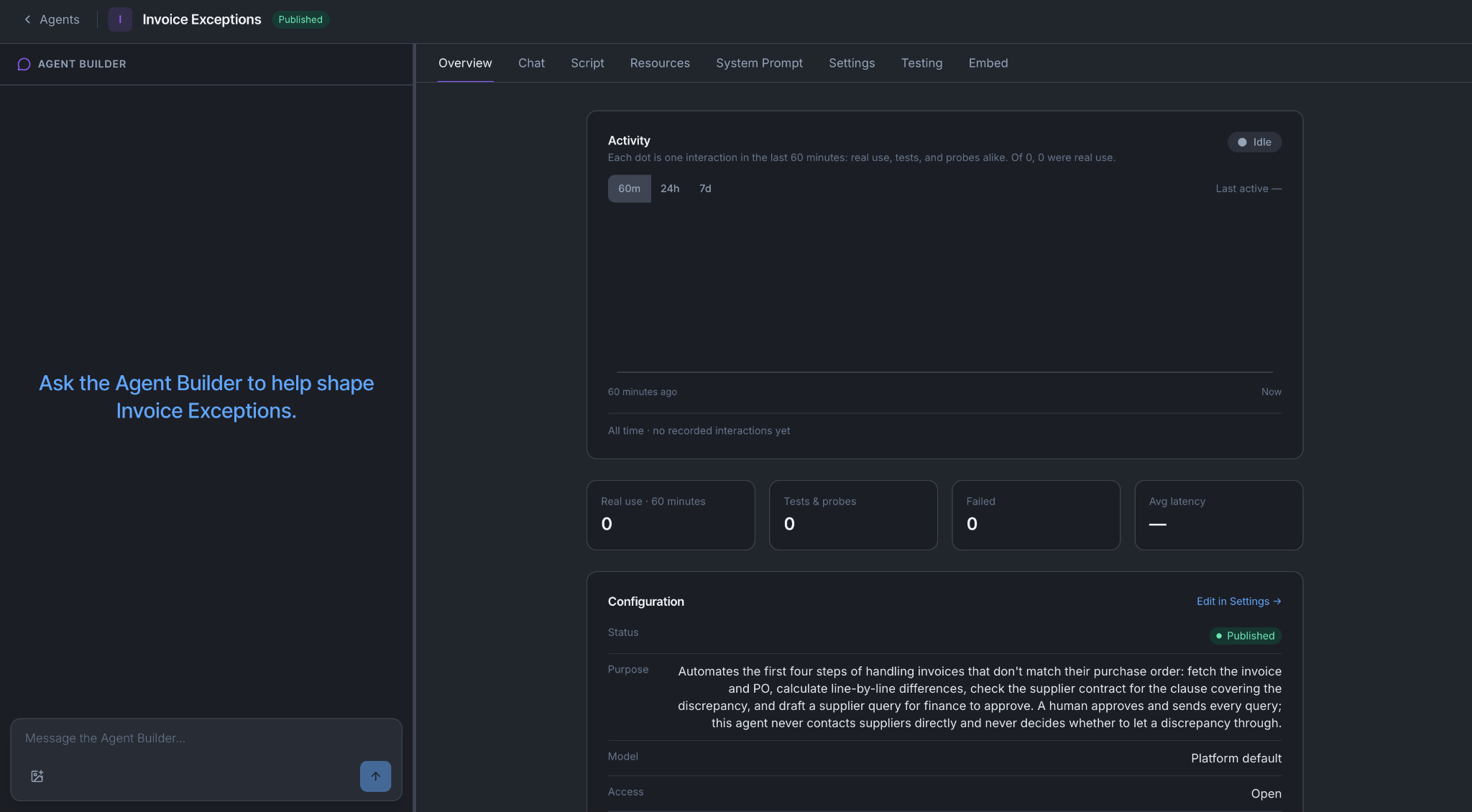
The Agent Builder is docked on the left of every tab. To change something, tell it there. On an agent that is already running, its edits are saved as a new version and wait for you to activate them. See What saving actually does.
What can go wrong
A connection has no operations. A connection can save cleanly and still offer nothing. Orca tests what it created and says so in its summary when something exists but can't be used. It repairs that resource in place instead of building a second one. Open the connection and check its Tools or Operations tab before you rely on it.
A credential is missing. Builders ask for credentials in a secure form the model never sees. If you skipped that step, finish it on the connection. See Connect a system.
Activation stops over an untested operation. The test run didn't exercise every step, or you didn't give the go-ahead for its writes. Ask Orca to run the test again, or see Test before it goes live.
The plan is one enormous agent. A long skill is often two or three jobs. Tell Orca to split it, and say so if the split cuts through something that belongs together.
You approved a plan you now regret. Nothing is destroyed. Change what it built, or switch the agent off on Versions & Availability and run Orca again with a better brief.
You're done when
- The agent exists and you can open it.
- Orca reported each script and function as verified, or you know which steps weren't exercised.
- You can name every connection, function and operation in the plan, and say why each one is there.
- You checked the Connections list yourself before approving.
- You read the list of what could not be converted.