Docs / AMS / Run / Triggers and schedules
View as MarkdownTriggers and schedules
Start an agent from a person, a schedule, your own software, another product's webhook, another agent or Claude, and see each run it started.
After this page your agent runs without you sitting in front of it: on a schedule, from your own software, or from another product's webhook. You can also see every run each one started.
What starts a run
Every way in starts the same agent, with the same configuration and the same limits. What differs is who or what set it off.
| What starts it | How | The invoice agent |
|---|---|---|
| A person in AMS | The agent's Chat tab | You paste invoice 88214 and ask the agent to work it |
| A colleague | The Hub, where agents published to a person appear. See Publish and share an agent | A finance assistant opens the agent in the Hub |
| A schedule | A schedule on the agent's Triggering tab | Every weekday at 07:00 UTC it takes the next unworked exception |
| Your own software | A call to the Mindset API with an API key | Your finance system calls Mindset the moment an invoice fails its PO match |
| Another product's webhook | A signed delivery from a system you don't control | Your accounts payable tool posts an event when a supplier disputes a payment |
| Another agent | An agent given this one as a resource can hand it work | A month end close agent hands each exception to the invoice agent |
| Claude | Claude or Claude Code reaching the agent over MCP. See Use your agents from Claude and other AI clients | An analyst asks Claude to check invoice 88214 |
| Your own product | An embedded session for one of your users. See How embedding works | Your supplier portal lets a buyer raise the query from the screen they're on |
Only agents start runs. A function can't be triggered or scheduled on its own. If the work has no judgment in it, trigger an agent and let it call the function.
Set up a schedule
- Open the agent and go to the Triggering tab.
- Under Schedules, add one. Choose Every N minutes (30 minutes at the shortest), Daily, or Weekly with the days under Repeat on.
- Set Time of day (UTC). Times are in UTC. There's no time zone picker.
- Turn on Enable this schedule.
- Save a version, then activate it on Versions & Availability.
Schedules are versioned. Every schedule change is a change to the agent's draft: creating a schedule, deleting one, turning one on or off, and editing its timing, its brief or its script parameters. Each takes effect when you activate the version that holds it. Until then the tab says "Not running yet: this schedule list belongs to a version that isn't active", with a link to activate it. A schedule you deleted keeps running until the version without it is active. See What saving actually does.
Activating a version can be refused while its script calls an operation that hasn't been tested. See Test before it goes live.
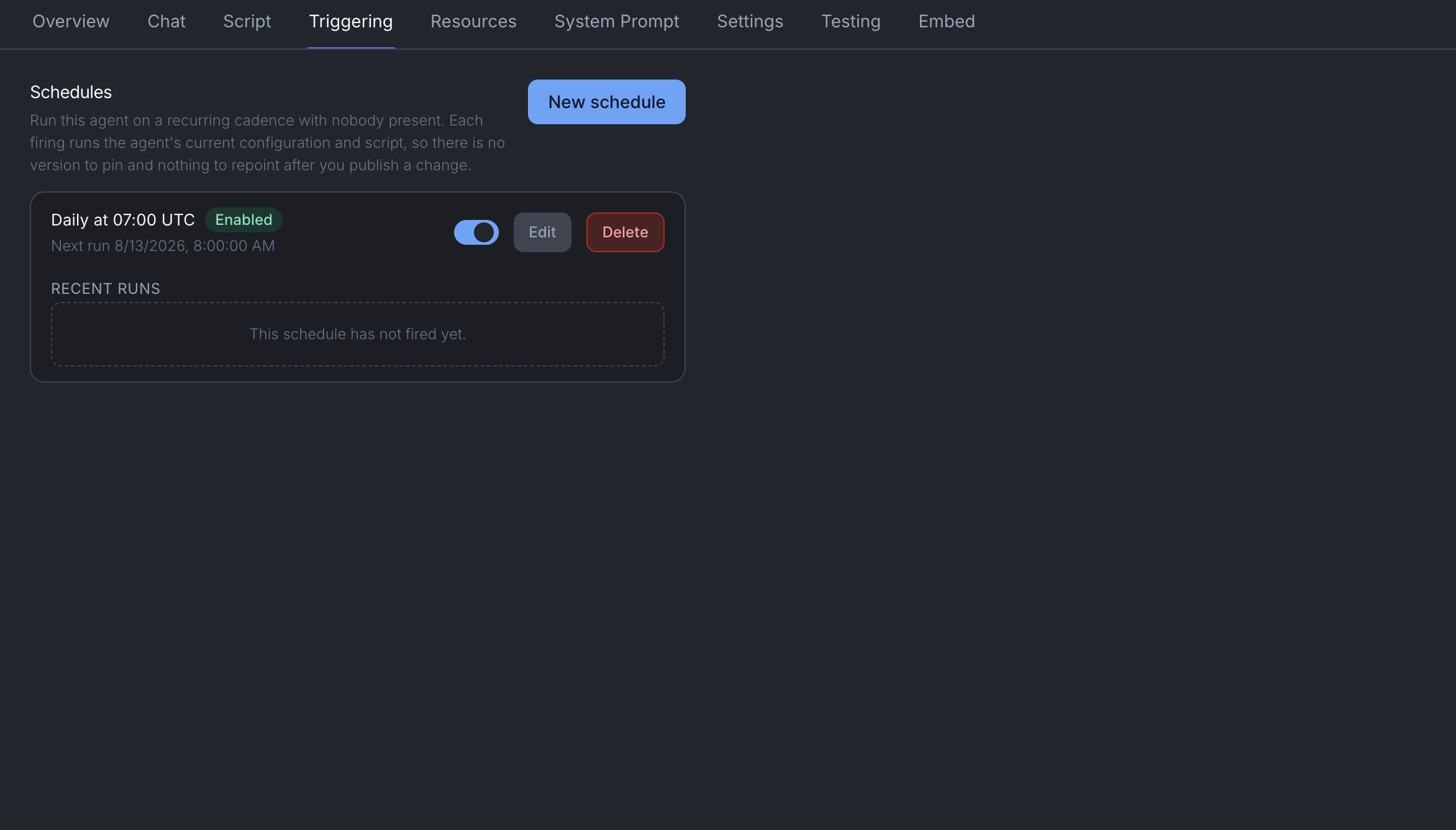
Each schedule shows its next run, a Run now button, and a Recent runs table.
Set a schedule to how often the data changes. An agent that runs hourly against data that updates daily costs 24 times what it needs to. See See and control what it costs.
Run now, and rehearsals
Run now fires a schedule straight away. You choose which version it runs:
- The active version runs for real.
- Any other saved version, including one that has never been active, runs as a rehearsal. A rehearsal is marked as one in the run history and stays out of health figures by default.
If the agent has unsaved changes, Run now asks Save this version and run it? Saving records your changes as a new version, puts nothing live, and runs the schedule as a rehearsal of that version. Cancel runs nothing.
Call it from your own software
- Create an API key under Settings → API keys. It's shown once, right after you create it, so put it straight into your secrets manager. A key works only in the environment it was issued into. See Environments.
- On the agent's Triggering tab, open How to call using the API for the request to send.
The call starts a conversation and answers with its ID straight away. It doesn't wait for the agent's reply, because a run can take minutes. Come back for the result with that ID. To carry the conversation on, post another message to the same conversation.
Pass an idempotencyKey in the request body. If you send the same key again, Mindset returns the first conversation and runs nothing, so a caller that isn't sure its request landed can safely retry.
A run your software starts doesn't carry on by itself when it stops part way. See When a run reaches a limit.
Start it from another product's webhook
Use this when a system you don't control should start the agent, such as a CRM or a ticketing tool. That system can't hold your API key, so it signs each delivery instead.
- On the Triggering tab, go to Let another product start this agent and choose Set up an inbound source.
- Create the webhook source with the vendor's signing secret, and bind this agent to it.
- Open the source. Its page holds the delivery address, which includes your org and environment. Paste that address into the vendor's console.
The first delivery teaches Mindset how the vendor signs and doesn't start the agent. Every delivery after that is checked against the secret and starts a run. The source's page lists every delivery it has received, and the reason for any it refused.
See the runs
The Recent runs table under each schedule shows every firing:
| Column | What it says |
|---|---|
| Origin | Scheduled, Manual (Run now) or Webhook, with a Rehearsal badge on a rehearsal |
| Version | Which version ran |
| Status | Whether the firing ran |
| Flow | For a scripted agent, whether the job got done: Completed, Waiting on a person, or Stopped mid-flow with the reason, such as "ran out of turns" |
Waiting on a person is the place to look for a run parked on a Slack question. A run with no script shows a dash in Flow.
A run started by your own software or by another agent doesn't appear here. Find those in Log. See Check what happened.
When it doesn't work
Nothing ran at all. Check that the schedule is enabled in the active version, not only in a saved one. For a webhook, check the source has had its first, teaching delivery.
The schedule still runs after you deleted it. The version that removes it isn't active yet. Activate it.
The run is sitting still. Check Flow in the run history. Waiting on a person means a Slack question is unanswered. Stopped mid-flow names the reason.
You're done when
- A run appears with the trigger that started it.
- Every schedule you need is in the active version, and the tab doesn't say "Not running yet".
- Your own software passes an
idempotencyKeyand comes back for the result by conversation ID.